
 Step 7 - Capturing Form Data Using Scripts and Templates
Ok, now that we know how to look at data, let's capture data and save it to disk.
Creating our EditCustomer Template
In the last topic we saw how to create a new page in Visual Studio or Visual Studio code. I'll use Visual Studio Code here and here are the steps to create the new EditCustomer.wp page:
- Use Ctrl-N to add a new page and name it
EditCustomer.wp - On the empty page type:
wc-tmp-page
This creates a fully formatted HTML page:

This page has a placeholder block where the main content is injected:
<div id="MainView">
    ... Content goes here ...
</div>
To demonstrate what we're shooting for here's what the edit page will look like initially:
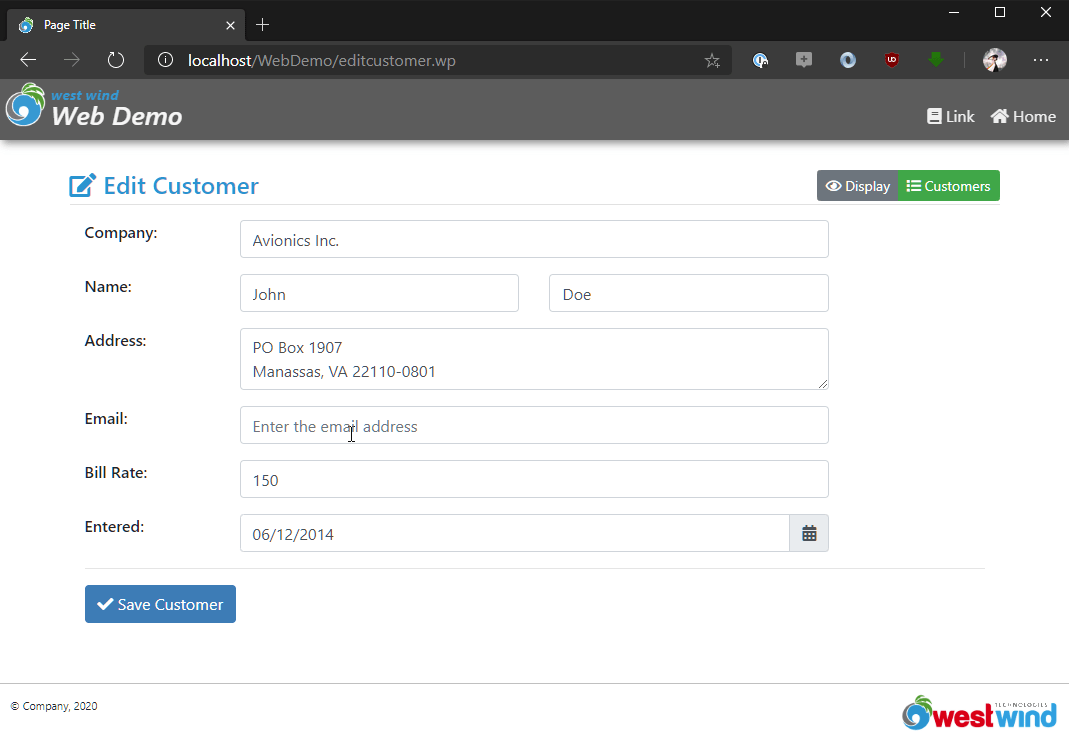
This page is accessed with a URL like:
http://localhost/WebDemo/EditCustomer.wp?id=_4FG12Y7U6
which can be accessed from the Customer display (ShowCustomer.wp) page as an Edit link at the top of the page.
Creating the EditCustomer Process Method
First things first: We need to set up the Process class by creating a new method called EditCustomer() in WebProcess.prg. This is the first cut and only handles displaying of a customer in the edit form for now:
****************************************************
* EditCustomer
******************************
FUNCTION EditCustomer()
PRIVATE pcErrorMsg, poError, pcId

pcErrorMsg = ""
poError = CREATEOBJECT("HtmlErrorDisplayConfig")

pcId = Request.Params("Id")

IF !USED("Customers")
   USE Customers IN 0
ENDIF
SELECT Customers

IF !EMPTY(pcId)
   LOCATE FOR Id=pcId
ELSE
   GO BOTTOM
   SKIP
ENDIF

PRIVATE poCustomer
SCATTER NAME poCustomer Memo


*** Render EditCustomer.wp
Response.ExpandScript()
ENDFUNC
This request does the following:
- Creates an error object that is initially free of errors (poError)
- Loads a
poCustomerobject from the matching record id - Calls
Response.ExpandScript()to render the script template
The call to ExpandScript() is what triggers the ExpandScript.wp template to load. If you do this before we add additional HTML to the template, it should basically display a functional but essentially empty page that shows just a page outline.
By default ExpandScript() is equivalent to ExpandScript(Request.GetPhysicalPath()) which maps the request to a file that matches the path of the actual request. Optionally ExpandScript() takes a template path and you can render a template different than the method name:
Response.ExpandScript("~/SomeOtherPage.wp")
While this can be useful in some scenarios where multiple requests render the same template, most of the time you'll just use the no parameter syntax that uses the same filename as the method name.
Adding Input Fields to the HTML Form
So next we'll need to add the the actual input fields. This is quite a bit of code and for completeness sake I'll show the entire HTML document here for those that don't use any of the page templates shown earlier
Here's the complete HTML page (latest on GitHub):
<% * VS Addin Comment: SourceFile="~\..\deploy\WebProcess.PRG" %>
<!DOCTYPE html>
<html xmlns="http://www.w3.org/1999/xhtml">
<head>
<title>Page Title</title>
<meta charset="utf-8" />
<meta http-equiv="X-UA-Compatible" content="IE=edge" />
<meta name="viewport" content="width=device-width, initial-scale=1, maximum-scale=1" />
<meta name="description" content="" />
<link rel="shortcut icon" href="~/favicon.ico" type="image/x-icon" />
<meta name="apple-mobile-web-app-capable" content="yes" />
<meta name="apple-mobile-web-app-status-bar-style" content="black" />
<link rel="apple-touch-icon" href="touch-icon.png" />
<link rel="icon" href="~/touch-icon.png" />
<meta name="msapplication-TileImage" content="~/touch-icon.png" />
<link href="~/lib/bootstrap/dist/css/bootstrap.min.css" rel="stylesheet" />
<link href="~/lib/fontawesome/css/all.min.css" rel="stylesheet" />
<link href="~/css/application.css" rel="stylesheet" />
<style>
ul { margin: 0;}
</style>
</head>
<body>
<div class="banner">
<!-- Slideout Menu Toggle - Hamburger menu -->
<a class="slide-menu-toggle-open no-slide-menu"
title="More...">
<i class="fas fa-bars "></i>
</a>
<!-- Icon and Company Logo -->
<div class="title-bar no-slide-menu">
<a href="~/">
<img class="title-bar-icon" src="~/images/Icon.png" />
<div style="float: left; margin: 4px 5px; line-height: 1.0">
<i style="color: #0092d0; font-size: 0.9em; font-weight: bold;">west wind</i><br />
<i style="color: whitesmoke; font-size: 1.65em; font-weight: 600;">Web Demo</i>
</div>
</a>
</div>
<!-- top right nav menu - .hidable for options that hide on small sizes -->
<nav class="banner-menu-top float-right">
<a href="#" class="hidable">
<i class="fa fa-book"></i>
Link
</a>
<a href="~/">
<i class="fas fa-home"></i>
Home
</a>
</nav>
</div>
<div id="MainView">
<div class="container">
<div class="btn-group float-right btn-group-sm">
<a class="btn btn-secondary" href="ShowCustomer.wp?id=<%= pcId %>"><i class="far fa-eye"></i> Display</a>
<a class="btn btn-success" href="CustomerList.wp"><i class="fas fa-list"></i> Customers</a>
</div>
<h3 class="page-header-text">
<i class='fa fa-edit'></i> Edit Customer
</h3>
<!-- Conditionally display an error message -->
<%= HtmlErrorDisplay(poError) %>
<!-- <% if !Empty(pcErrorMsg) %>
<div class="alert alert-warning">
<i class="fa fa-warning error"></i>
<%= pcErrorMsg %>
</div>
<% endif %> -->
<form action="editcustomer.wp" method="POST"
class="form-horizontal container"
style="padding: 0 15px 30px;">
<div class="form-group row">
<label class="col-sm-2">Company:</label>
<div class="col-sm-8">
<input name="Company" id="Company"
value="<%= poCustomer.Company %>"
class="form-control"
placeholder="Enter a company name" />
<%= HtmlBindingError("Company",poError.Errors) %>
</div>
</div>
<div class="form-group row">
<label class="col-sm-2"> Name:</label>
<div class="col-sm-4">
<input name="FirstName" value="<%= Request.FormOrValue("FirstName", poCustomer.FirstName) %>"
class="form-control"
placeholder="Enter the first name"
/>
</div>
<div class="col-sm-4">
<input name="LastName" value="<%= Request.FormOrValue("LastName",poCustomer.LastName) %>"
class="form-control"
placeholder="Enter the last name" />
</div>
</div>
<div class="form-group row">
<label class="col-sm-2">Address:</label>
<div class="col-sm-8">
<textarea name="Address"
class="form-control"
placeholder="Enter the full address"
><%= poCustomer.Address %></textarea>
<%= HtmlBindingError("Address",poError.Errors) %>
</div>
</div>
<div class="form-group row">
<label class="col-sm-2">Email:</label>
<div class="col-sm-8">
<%= HtmlTextBox("Email",poCustomer.Email,[class="form-control" placeholder="Enter the email address"]) %>
<%= HtmlBindingError("Email",poError.Errors) %>
</div>
</div>
<div class="form-group row">
<label class="col-sm-2">Bill Rate:</label>
<div class="col-sm-8">
<input name="BillRate" value="<%= poCustomer.BillRate %>"
class="form-control"
placeholder="Enter the billing rate in dollars"/>
</div>
</div>
<div class="form-group row">
<label for="Entered" class="col-sm-2">Entered:</label>
<div class="col-sm-8">
<%= HtmlDateTextBox("Entered",poCustomer.Entered,[class="form-control" ]) %>
<%= HtmlBindingError("Entered",poError.Errors) %>
</div>
</div>
<hr/>
<button type="submit" name="btnSubmit" class="btn btn-primary">
<i class="fa fa-check"></i> Save Customer
</button>
<input type="hidden" name="id" value="<%= poCustomer.id %>" />
</form>
</div> <!-- container -->
</div> <!-- end #MainView -->
<footer>
<a href="http://www.west-wind.com/" class="float-right">
<img src="~/images/WestwindText.png" />
</a>
<small>© Company, <%= YEAR(Date()) %></small>
</footer>
<!-- slide in menu - Remove if you don't use it -->
<nav class="slide-menu">
<div style="padding: 10px 10px 10px 3px;">
<a class="disabled">
<i class="fa fa-home"></i>
Main Menu
</a>
<a href="~/">
<i class="fa fa-home"></i>
Home
</a>
<a href="#" class="indented">
<i class="fas fa-newspaper-o"></i>
Sub Link
</a>
<a href="#" class="indented">
<i class="fas fa-newspaper-o"></i>
Sub Link 2
</a>
<a href="#">
<i class="fa fa-unlock-alt"></i>
Login
</a>
</div>
</nav>
<script src="~/lib/jquery/dist/jquery.min.js"></script>
<!--
Add these only if you use Bootstrap dropdowns or modals
And if you do: don't add here, only to content pages that actually need it
<% section="scripts" %>
<script src="~/lib/bootstrap/dist/js/bootstrap.min.js"></script>
<% endsection %>
-->
<script src="~/lib/bootstrap/dist/js/bootstrap.bundle.min.js"></script>
<script>
// toggle menu, handle menu click and outside click to close
$(document).on("click",
".slide-menu-toggle-open,.slide-menu-toggle-close," +
".slide-menu a, #SamplesLink,.slide-menu",
function () {
$(".slide-menu").toggleClass("active");
});
</script>
<script src="~/lib/moment/min/moment.min.js"></script>
<link href="~/lib/tempusdominus-bootstrap-4/build/css/tempusdominus-bootstrap-4.min.css" rel="stylesheet" />
<script src="~/lib/tempusdominus-bootstrap-4/build/js/tempusdominus-bootstrap-4.min.js"></script>
<script>
// Add each control Id to date time picker
$("#Entered").datetimepicker({
format: "MM/DD/YYYY", // Date format
});
</script>
</body>
</html>
Templates are just HTML documents with embedded FoxPro script expression and code blocks. The key content of this template is the middle section contained in the <form> tag. You can see the form fields that map to the database table fields, embedded inside fo the <form> like this:
<div class="form-group row">
    <label class="col-sm-2">Company:</label>
    <div class="col-sm-8">
        <input name="Company"
               value="<%= poCustomer.Company %>"
               class="form-control"
               placeholder="Enter a company name" />
    </div>
</div>
Notice the < %= poCustomer.Company % > embedded in the value. poCustomer is an object created in the Process method via SCATTER NAME poCustomer MEMO, and the <%= poCustomer.Company %> binds the value of this object to the form.
While assigning the value like <%= poCustomer.Company %> works if you always update the assigned value or model, it doesn't work as expected if for some reason the assigned value is not updated in multiple POST operations like a failed validation (as we'll see shortly).
Rather what should happen is that in a POST back request, the value should be pulled from the POST data using the previous user input. If that value is not there, only then should the assignment value - in this case poCustomer.Company - be used.
The solution is to use the Request.FormOrValue() (or FormChecked(), FormSelected() and FormDateOrValue()) to retrieve a POST value first and then the assigned value:
<div class="form-group row">
    <label class="col-sm-2">Company:</label>
    <div class="col-sm-8">
        <input name="Company"
               value="<%= FormOrValue("Company",poCustomer.Company) %>"
               class="form-control"
               placeholder="Enter a company name" />
    </div>
</div>
This can be taken one step further by using an even simpler HTML helper:
<div class="form-group row">
    <label class="col-sm-2">Company:</label>
    <div class="col-sm-8">
        <%= HtmlTextBox("Company",poCustomer.Company,
                        [class="form-control" placeholder="Enter a company name"]) %>
    </div>
</div>
The HtmlTextBox() function abstracts the entire textbox into a FoxPro function that renders the HTML. You simply pass the field name and initial value as well as any additional attributes and the control does the rest.
Which approach you use is preference, but I'd recommend one of #2 or #3 to ensure the POSTed value is used.
Self Posting Pages
This template also is set up as a self-posting page. What this means is that the display and postback page are the same and a single method handles both.
You want for most if not all input forms, so that if an error occurs you can display the error in the page along side the controls in question.
So let's adjust the EditCustomer method in the WebProcess class to handle saving the data posted when we click the Save Customer button.
FUNCTION EditCustomer()
PRIVATE pcErrorMsg, poError, pcId

pcErrorMsg = ""
poError = CREATEOBJECT("HtmlErrorDisplayConfig")

pcId = Request.Params("Id")

IF !USED("Customers")
   USE Customers IN 0
ENDIF
SELECT Customers

IF !EMPTY(pcId)
   LOCATE FOR Id=pcId
ELSE
   GO BOTTOM
   SKIP
ENDIF

PRIVATE poCustomer
SCATTER NAME poCustomer Memo


IF Request.IsPostBack()
   poCustomer.Id = Request.Form("id")
   poCustomer.Company = Request.Form("Company")
   poCustomer.LastName = Request.Form("LastName")
   poCustomer.FirstName = Request.Form("FirstName")
   poCustomer.Address = Request.Form("Address")
   poCustomer.Email = Request.Form("Email")
   poCustomer.BillRate = VAL(Request.Form("BillRate"))
   poCustomer.Entered = CTOT(Request.Form("Entered"))

   *** Validation goes here

   *** No id = new customer
   IF EMPTY(poCustomer.Id)
      poCustomer.Id = SYS(2015)
      APPEND blank
   ENDIF

   GATHER NAME poCustomer MEMO

   pcErrorMsg = "Customer info saved."
   Response.AppendHeader("refresh","2;url=CustomerList.wp")
ENDIF

*** Render EditCustomer.wp
Response.ExpandScript()

ENDFUNC
The code is pretty straight forward. If we come in with an HTTP GET operation - that is we're just coming to the page initially we simply display the data. The Request.IsPostBack() check fails and the form is simply displayed with the value given.
When we press the Save button, the form is submitted and now Request.IsPostBack() is true and so the form data is retrieved. Request.Form() retrieves form variables in the POST buffer of the request which are sent via IIS to Web Connection. The values are always strings, so in the case of the BillRate and Entered fields those values have to be converted to their respective types that get stored into the database.
This form works with existing Customers if you pass in an ID. If you don't pass an id an empty form pops up and when the customer is saved a new customer is created.
So far this is overly simplistic - there's no error checking and there are problems with conversion. In the next topic we'll look at handling validation and other Form related processing to make this form more reliable.

Comment or report problem with topic