
 Step 4 - Configure COM settings
This step allows you to register your COM server and set DCOM permission so that the server can be loaded from Web Connection.
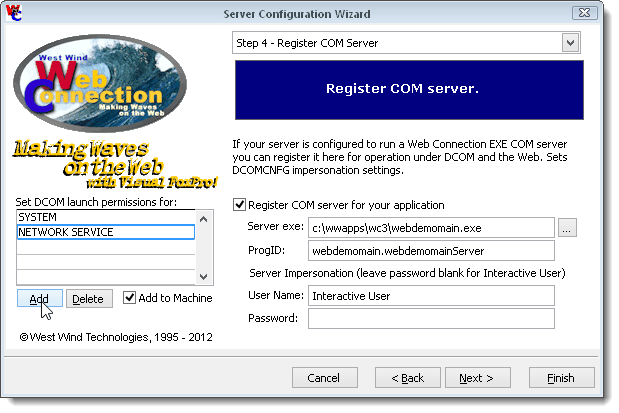
Server Exe
Pick the path to the EXE file that you want to register. This file will be registered by running WebDemo /regserver to register the COM object.
ProgID
The progid of the server such as WebDemo.WebDemoServer. Note: No checks are made that this is correct, so make sure you know what the server's ProgID is. You can check the project settings. Typically the progid is the name of the project, dot, name of the class. If you let WC generate the project it'll be the project name, dot, project name + Server. Hence, WebDemo.exe results in WebDemo.WebDemoServer. If for some reason your classname is different make sure that you specify it here.
The ProgId is required for DCOM registration.
Server Impersonation
This option specifies the user account and password that your COM server will run under. This username can be one of the fixed Windows accounts like INTERACTIVE USER, SYSTEM, NETWORK SERVICE which require no passwords, or a specific Windows Account that exists on the machine. If you specify a user account you also have to specify the password.
This setting is equivalent to the DCOMCNFG Impersonation setting.
DCOM Launch Permissions
This option configures the DCOM Launch and Access permissions for your COM object. These settings add users to the permission list of the server so that applications and users can launch your COM object. Starting with Web Connection 5.0 typically you only need to set the System or NETWORK SERVICE account (depending on which account your Web Server or Application Pool is running under).
Web Connection by default adds these accounts to the list:
SYSTEM
NETWORK SERVICE ( IIS 6 and later)
This setting is equivalent to the DCOMCNFG Default Launch and Access and Computer Launch and Access rights (if Add to Machine is checked).
If you specify a specific user in the server's Impersonation, make sure you also add this user to the launch permissions list. This will effectively add the user to the server's Launch and Access permissions.
The Add to Machine checkbox also adds these permissions to the machine level DCOM permissions. In general this is not recommended as you're introducing a global server setting, but the option is there.
DCOMPermissions.exe in your .\TOOLS directory is required in order to set the various DCOM settings automatically from the Wizard. Make sure you copy this file to your installation either in the .\TOOLS directory or in the same path as the CONSOLE.EXE file.
This Wizard does not add the ProgId to your server wc.ini file if you are not copying a new wc.dll to your project. In other words - it assume your wc.ini file is already configured unless you are creating a new one. Therefore make sure that when you deploy your Web Connection DLL/INI that the ProgID matches:
...
[Automation Servers]
;*** Severloading - 0 - Normal  1 - Round Robin
ServerLoading=1

;*** KeepAlive  0 - Normal  1 - Force extra COM reference to keep alive
KeepAlive=1

Server1=webDemo.webDemoServer
Server2=webDemo.webDemoServer
;Server3=webDemo.webDemoServer
...
See also
COM Server Configuration
Comment or report problem with topic