
 The Web Connection Management Console
 The Web Connection Management Console
The Web Connection Management control allows you create new Web Connection project and update existing applications with new process classes. You can also use the Console to configure a server for operation with an already built Web Connection application.
This mechanism is the preferred way to perform these tasks as it automates several manual steps into simple Wizards that can perform the tasks in a few seconds. In this section we'll show how the Wizards work and also explain what the they do behind the scenes so if you have to perform the tasks manually you will be able to do it manually.
To start the Management Console from within VFP do:
DO CONSOLE
from the Web Connection install directory either from within Visual FoxPro or by clicking on the EXE in Explorer. Console.exe is free standing, but some features that create VFP code will not work from the EXE. You can also start the console from the Web Connection Menu.
The Management Console's main screen is little more than a menu to goes off to the supported tasks:
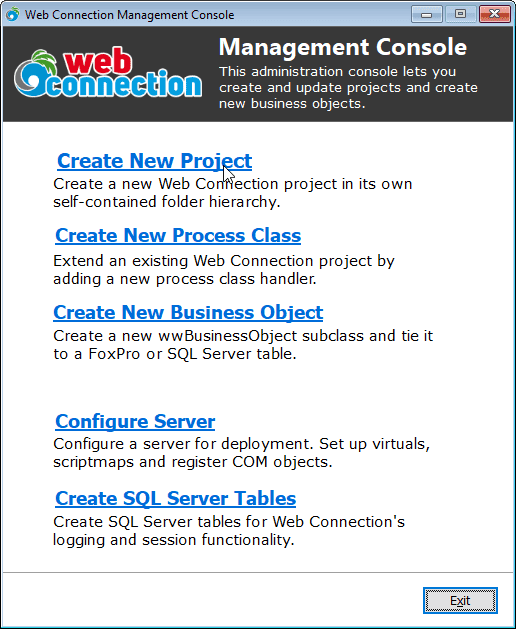
Create a new project
This operation creates a brand new Web Connection project. It generates a new main program, all the configuration files, hooks in a main process class which is where your custom code goes and optionally allows you to set up a virtual directory and script map for your new server. It also creates a VFP project, adds files, compiles the server and optionally configures the DCOM settings for the object. (remember WC3.0 servers are automatically COM compatible).Create new process class
If you have an existing application this wizard allows you to easily add a new process class (which you can think of as a logical grouping or sub applet of your server). This process hooks the new process into the server's mainline PRG file, creates a stub process class and loader code that you are ready to fill custom handler methods into. This wizard also lets you set up an addtitional virtual directory on the Web server to differentiate the new sub-app. This inserts code into a mainline program and the mainline must include specific templates for this to work correctly (based on templates\appmain.prg).Create New Business Object
This option allows you to create a new business object derived from the wwBusiness class. You can create PRG or VCX classes here.Configure server
Server configuration is meant to be used when you deploy an application online. As such it sets up scriptmaps and virtual directories, copies the Web Connection DLL, configures the configuration files and registers an application COM server.
See also
Server Configuration Wizard | COM Server Configuration
Comment or report problem with topic