


 C
C
| C |
|
Ó
Rick Strahl, West Wind Technologies, 1999
http://www.west-wind.com/
Reworking your applications to run over the Web is one way to take advantage of the Internet, but it's also an intense undertaking that requires you to completely rethink the way your applications work. In many situations, you can take advantage of Internet functionality at a much lower level simply by integrating specific functionality directly into your applications. This document describes several ways that allow you to build Internet functionality into your existing applications with relatively little effort giving you big usability enhancements with very little code.
In this article you'll find out how to:
¨ Access Internet and Windows monikers using the ShellExecute API
¨ Integrate SMTP Email, FTP and basic HTTP
¨ Access database files on a server over the Internet
¨ Access SQL Server over the Internet using TCP/IP
¨ Use DCOM over the Internet and TCP/IP
¨ Use Microsoft RDS to access data and COM objects on a Web server
For finding out more about building distributed applications over HTTP see the following article:
Building distributed applications
over HTTP with wwIPStuff
Fat client's been getting a bad rap as outdated technology that doesn't scale. While this may be true, it's also a fact that vast majority of applications continue to be standalone or network apps running on client machines. Business applications often need flexibility that cannot do without a rich client environment and database functionality that uses local functionality to provide this environment.
Thin client is in, but more and more there's also a drive towards building applications that share logic and data access between the client and server tiers. I call this medium client applications, which use traditional development tools to implement distributed applications that share the responsibility of logic between client and server utilizing the Internet as a network.
In this context, this article discusses ways that you can take advantage of Internet technologies without giving up the flexibility and functionality that you are used to with Visual FoxPro.
The first and most easy step for Internet integration is enhancement of existing applications by adding basic Internet features:
¨
Plugging in minor features
Small enhancements for basic Internet protocols can bring big functionality
improvements to existing applications.
¨
Web links, Email, FTP, HTTP access
Applications can easily take advantage of features like Hyperlinks, Windows Shell and
Extension access, which are really easy to implement via the Windows Shell API. Email
continues to be an important part of most user's Internet use and providing email can
provide a valuable feedback mechanism for
status reports, notifications, error handling and many more occasions. Moving files across
locations is another feature that many applications require. By using FTP or HTTP servers
to hold these files and give people distributed access you can make your applications much
more flexible and allow it to share data with other users anywhere. HTTP access is also
very powerful for retrieving and interacting with existing Web content. The beauty is that
all of this functionality can be integrated rather easily with very little code.
¨
Web Browser Control
The IE Web browser control opens up a whole new way to think about user interface for
applications. First, the control allows you to integrate a custom browser into your
application, one that can be easily driven through the application and can be fully
controlled through the application allowing you to tightly control the content that the
custom browser accesses. But it can also serve as a great mechanism to display rich
content for an application and even as a way to ease development of Web centric
applications that may have to live both as a standalone application on the desktop (or on
a CD) as well as a Web application accessed purely through a browser and Web server.
The Internet has opened up the idea of a global network into a reality that your applications can take advantage of. However, with all the hype about distributed applications and Web server centric applications there hasn't been much discussion about accessing data over the Internet and driving logic of server applications from the client.
¨
Accessing Web content
One of the most powerful concepts of the Internet is the ability to have client side
applications accessing Web content. By utilizing rich client side applications that can
communicate with servers over the Internet be it for pulling simple content or even for
driving applications, you gain a whole new layer of possibilities to your applications.
It's actually quite easy to gather Internet content and use it as an information source in
your applications.
¨
Accessing data
Along the same lines it's possible to access data over the Internet. TCP/IP is a
standard network protocol that is supported by Windows and it's possible to access data
directly over the Internet as with any other network connection. There are also ways to
use middleware tools and components that can give your client side application the ability
to access data from the server. I'll show some examples of this using pure FoxPro code on
both client and server as well as Microsoft's Remote Data Service (RDS) which provides
very similar functionality in a system component.
¨
Building distributed applications with VFP on client
*and* server
The Web is powered by HTTP. HTTP is a relatively simple protocol to work with. With
it, it's easy to create complex applications that can be driven and/or shared by both
client and the server. In this scenario, applications have the ability to work offline, or
use the Web as a live data/content feed. This can relate to either your own Web
application running on a Web server, or any other resource availlable on the Internet. For
example, it's easy to download all sorts of information like stock information, weather
info, news etc. all of which you can use to customize and enhance your applications with.
Finally you can build truly distributed applications with VFP where the client application
controls part of the logic and the server part of the other. The power of this mechanism
is that you can mix and match client and server technologies, or you can even use VFP
clients talking to VFP server to cross the Internet boundary.
Let's start by looking at enhancing existing applications. I'll cover the following:
¨ Shell API
¨ SMTP Email
¨ FTP
¨ Basic programmatic Web access
One of the easiest and powerful features of the Windows operating system is the Shell API. This API is not Internet specific but it provides some cool features for Internet use. It provides a mechanism for "executing" any kind of document that Windows knows about. Using this API you can "run" a Word document or an .EXE file, access a URL in your default browser, force an e-mail window to pop up, or bring up your favorite HTML editor to edit an HTML document. The interface works through a mechanism called monikers, which is essentially the Windows way to parse command lines. If Windows can recognize a moniker, it will attempt to execute it the same as it does when you double-click on a document with a known extension in the Windows Explorer.
The Shell API is implemented in several different ways, the simplest of which is an API call you use in your Visual FoxPro applications. To try it, create the following function:
FUNCTION ShellExec
LPARAMETER lcLink, lcAction, lcParms
lcAction = IIF(EMPTY(lcAction), "Open", lcAction)
lcParms = IIF(EMPTY(lcParms), "", lcParms)
DECLARE INTEGER ShellExecute ;
IN SHELL32.dll ;
INTEGER nWinHandle, ;
STRING cOperation, ;
STRING cFileName, ;
STRING cParameters, ;
STRING cDirectory, ;
INTEGER nShowWindow
DECLARE INTEGER FindWindow ;
IN WIN32API ;
STRING cNull,STRING cWinName
RETURN ShellExecute(FindWindow(0, _SCREEN.caption), ;
lcAction, lcLink, ;
lcParms, SYS(2023), 1)
and then try the following links (adjust the paths as necessary):
ShellExec("http://www.west-wind.com/")
ShellExec("ftp://ftp.west-wind.com/")
You'll find that in both instances the ShellExecute API brings up the currently selected default browser (yes, this can be Netscape), and attempts to load the page you specified from the Web. You can also force your e-mail client to pop up:
ShellExec("mailto:billg@microsoft.com")
with Billy's name already entered into the To: field and the message window ready for you to start typing your latest reason for hating Windows. Although the Shell API can be used to access any link that you could use in an HTML document's HREF link, you can also access other things on your system:
*** Open Explorer in c:\temp
Shellexec("c:\temp\")
*** Runs VFP
ShellExec("c:\vstudio\vfp98\vfp6.exe")
*** Opens a word document
ShellExec("c:\Webbook\Chapter7\Chapter7.doc")
*** Opens a Zip file in WinZip
ShellExec("c:\downloads\southpark.zip")
You can also cause documents to be edited and printed, if the document type supports it:
*** Visual Interdev comes up
ShellExec("http://www.west-wind.com/", "Edit")
ShellExec("c:\Webbook\Chapter7\Chapter7.doc", "Print")
The former causes the resulting HTML from the West Wind site to be opened in your favorite HTML editor (if you have one configured), ready for editing. The latter fires up Microsoft Word and prints the requested document.
Because it has the ability to bring up a Web browser, this API is an easy way to bring people to your Web site by clicking on a button or menu option. You can easily integrate this functionality to take users to information pages, update pages, and of course, order pages to buy more stuff from you. You can even use it to display customized information, or information that's updated on a regular basis, simply by using naming conventions for the HTML pages on the server (how about a tip of the day with HTML pages, such as Tip102098.htm?). You can also cause the request to be dynamic through the URL query string by querying a dynamic server link such as an ASP page or FoxISAPI request:
ShellExecute("http://www.west-wind.com/wwThreads/default.asp?MsgId=_SA012344")
This takes you directly to the specified message on this message board application. You could conceivably display query information on the server in the same fashion.
In addition, the API makes it easy to show HTML in your applications, either from file or from a string. Here's a useful little function that uses ShellExecute to display an HTML string in the browser:
FUNCTION ShowHTML
LPARAMETERS lcHTML, lcFile, loWebBrowser
lcHTML = IIF(EMPTY(lcHTML), "", lcHTML)
lcFile = IIF(EMPTY(lcFile), SYS(2023) + "\_HTMLView.htm",lcFile)
STRTOFILE(lcHTML, lcFile)
IF VARTYPE(loWebBrowser) = "O"
*** If a browser object was passed use it
*** instead of an external browser window
loWebBrowser.Navigate(lcFile)
ELSE
ShellExecute(lcFile)
ENDIF
RETURN
*EOP ShowHTML
You can simply pass any HTML string to this function and it will render it in the browser and pop it open. If you have an existing instance of a WebBrowser object or an IE COM object (more on this later), you can render the HTML within that object instead of in the external window controlled by ShellExecute.
You can also call the Shell API's COM interface to access all sorts of interesting Windows functionality:
o = CREATEOBJECT("Shell.Application")
o.Open("http://www.west-wind.com/")
*** Fire up Windows Dialogs modally
o.SetTime()
o.FindFiles()
o.ShutDownWindows()
o.FileRun()
o.ControlPanelItem("Network")
"Open" works very much the same as the ShellExecute API call, only it always uses the Open action verb. There's no Edit or Print option, so you have to use ShellExecute for those operations. However, the Shell API also includes access to most Windows desktop operations—but keep in mind that these operations all require user intervention of some sort. These methods bring up dialogs in which the user must fill in information or click a button to continue. What does all this have to do with the Internet? Not much—but you might find these related operations useful.
wwIPStuff is a class library that provides common Internet protocols, wrapped in a single, easy-to-use class library. The class library can be downloaded from http://www.west-wind.com/files/wwipstuff.zip and is available as fully functional shareware from West Wind Technologies. The library was originally built to provide functionality that would be commonly required in the course of Web application development. It includes support for SMTP e-mail, FTP functionality, domain name lookup and reverse lookup, the ability to dial a RAS connection, and a number of other features related to driving HTTP connections through code. The HTTP features are described in great detail later in this article.
E-mail continues to be the most popular activity on the Internet, and more and more Internet applications are taking advantage of an e-mail interface. A few common uses I frequently use email for:
¨ Sending content of any sort to a user
¨ Sending confirmation and status notices for things like orders placed, orders shipped etc.
¨ Notification of errors in applications
¨ Sending output of long running reports to users when the reports complete
wwIPStuff implements outgoing SMTP e-mail via a DLL interface in wwIPStuff.dll, which contains a C++ e-mail class that performs the socket operations of communicating with the mail server. The VFP code simply acts as the front end to a function with a large parameter/class property interface that passes the information to the DLL for processing.
To install, simply make sure that you have wwIPStuff.vcx/.vct, wwUtils.prg, wconnect.h and wwIPStuff.dll in the current path or somewhere along the Visual FoxPro SET PATH. Using the class itself is very simple. You have to set only a few relevant properties on the wwIPStuff object to send a message:
SET CLASSLIB TO wwIPSTUFF ADDITIVE
SET PROCEDURE TO wwUtils ADDITIVE
loIP = CREATEOBJECT("wwIPStuff")
loIP.cMailServer = "your.mailserver.com" && or IP address
loIP.cSenderEmail = "yourname@yours.com"
loIP.cSenderName = "Jimmy Roe "
loIP.cRecipient = "jroe@roe.com "
loIP.cCCList = "jbox@com.com,ttemp@temp.com"
loIP.cBCCList = "somebody@nowhere.com"
loIP.cSubject = "wwIPStuff Test Message"
loIP.cMessage = "Test Message body" + CHR(13)
*loIP.cAttachment = "c:\temp\pkzip.exe"
*** Wait for completion
llResult = loIP.SendMail()
IF !llResult
WAIT WINDOW loIP.cErrorMsg
ELSE
WAIT WINDOW NOWAIT "Message sent..."
ENDIF
wwIPStuff is a minimalist SMTP client that lets you use the class interface to set the e-mail properties and the SendMail() method to actually submit the e-mail message to the mail server. You can specify the sender's e-mail name (note that you can potentially spoof an e-mail address—that's the way SMTP happens to work) and then supply recipient lists. You can provide either a single e-mail address or a list. When using the latter, separate each primary recipient, CC and Blind CC recipient with commas. The actual e-mail message consists of a subject line and message body, which can be of any length. You can optionally attach one file to the message; files are encoded in MIME format.
E-mail messages can be sent in two different modes: Synchronous or Asynchronous. Plain SendMail() waits for completion of the Send operation, and then returns error or completion information along with a valid .T. or .F. result. If .F. is returned, you can check the cErrorMsg property for the error that occurred.
SendMailAsync() sends the message without waiting for a result. The operation runs on a separate thread, so it appears to your application that the return is instant. When running Web applications in particular, this is the preferred way to send messages, to avoid blocking the server while waiting for the mail sending operation to complete.
Note that SMTP is a server-based protocol, which means that messages sent to it are submitted but not necessarily processed immediately. This means that, even with the synchronous SendMail() call that returns a good status code, there's no guarantee that the e-mail message actually got to its recipient. The only way you'll find out about an invalid e-mail address or a closed mailbox is by the returned mail error that will arrive in your Inbox.
wwIPStuff provides a number of FTP functions that facilitate file uploads and downloads. The FTP functions are implemented using VFP code that talks to the system WinInet.dll FTP functions. I don't have enough room here to print the source code, but you can look at the full VFP source code in wwIPStuff.vcx.
To download a file via FTP, use the following code:
SET CLASSLIB TO wwIPStuff ADDITIVE
SET PROCEDURE TO wwUtils ADDITIVE
loFTP = CREATEOBJECT("wwFTP")
lnResult = loFTP.FTPGetFile("ftp.westwind.com", "pkunzip.exe", ;
"c:\temp\pkunzip.exe")
IF lnResult # 0
? loFTP.cErrorMsg
RETURN
ENDIF
FTPGetFile() is a pure synchronous call that grabs an online file and downloads it to a local file. Because it's synchronous and doesn't provide any transfer-status feedback on long files, this function might make users think that their machine has locked up.
To work around this problem, there's FTPGetEx(), which supports event-method calls to allow you to cancel a download and handle a status display. To do so, you have to either subclass wwFTP or drop it onto a form and implement the OnFTPBufferUpdate() method. The full code looks like this:
SET CLASSLIB TO wwIPStuff additive
SET PROCEDURE TO wwUtils additive
PUBLIC o
o = CREATEOBJECT("myFTP")
WAIT WINDOW NOWAIT "Alt-x to abort download..."
ON KEY LABEL ALT-X o.lCancelDownload = .T.
IF o.FTPConnect("ftp.west-wind.com") # 0
? o.nError
? o.cErrorMsg
RETURN
ENDIF
IF o.FtpGetFileEx("wconnect.zip","c:\temp\wconnect.zip") # 0
? o.nError
? o.cErrorMsg
RETURN
ENDIF
ON KEY LABEL ALT-X
RETURN
DEFINE CLASS myFtp AS wwFTP
FUNCTION OnFTPBufferUpdate
LPARAMETER lnBytesDownloaded, lnBufferReads, lcCurrentChunk
DO CASE
CASE lnBufferReads > 0
WAIT WINDOW "Bytes read: " + TRANSFORM(lnBytesDownloaded) NOWAIT
*** DoEvents && Handle a UI event like Cancel Button Click
CASE lnBufferReads = -1
WAIT WINDOW "Download aborted..." TIMEOUT 2
ENDCASE
RETURN
ENDDEFINE
Here I'm using the Alt-X ON KEY LABEL command to trap an abort of the download by setting the FTP object's lCancelDownload flag to .T. When the flag is set, the FTP code aborts when the next chunk of data is to be fetched.
In order to display status information during the download, the method receives a running total of downloaded bytes. The parameters to this method hold the running total of bytes, the number of reads that have occurred so far, and the current chunk of data that was read. The last item is useful for building output incrementally for non-binary or other streamed data that can be read as it comes in. The lnBufferReads parameter contains a number greater than 0 while reading, and -1 if an error occurred or the operation was aborted (that is, lCancelDownload was set).
If you need to control other UI elements, such as a form with a Cancel button, you need to make sure that you call DoEvents in the update routine so that the UI event can fire and run.
You can also upload files in the same manner using the FTPSend and FTPSendEx methods. Here's an example of FTPSend (the SendEx version provides the same OnFTPBufferUpdate "events" as the FTPGetFileEx method):
o = CREATEOBJECT("wwFTP")
lnResult =
o.FTPSendFile("ftp.west-wind.com", "c:\temp\pkunzip.exe", ;
"/pkunzip.exe", "username", "password")
IF lnResult # 0
? o.cErrorMsg
ENDIF
Note that the username and password are required only if you're uploading files to a restricted directory that doesn't allow uploads to anonymous users. This is generally the case with FTP uploads, but it's entirely up to the site administrator to set these permissions.
In addition to these functions, you can get a FTP directory listing and delete files on the server using the aFTPDir and FTPDeleteFile methods of the wwFTP object. Take a look at the class library for and the included HTML Help file more details about how to call these methods.
WwIPStuff's strongest feature is its HTTP functionality. I'll talk more about this further on in this article, but in its basic form it provides an easy mechanism for retrieving Web content from any HTTP URL.
The easiest way to get started is with the HTTPGet method, which is a simple way to retrieve Web content into a string with a single method call. To use it you can simple do:
O=CREATEOBJECT("wwIPStuff")
*** Simple retrieval of data
lcResult = o.HTTPGet(“http://www.west-wind.com/”)
lcResult = o.HTTPGet(“http://localhost/datafile.dat”)
lcResult = o.HTTPGet(“http://localhost/report.pdf”)
which retrieves the entire content of the Web page into a string. Note that you can pull HTML down or any kind of content that the Web server makes available. The latter two requests are pulling binary data from the server – some datafile and an Adobe PDF document, which you can easily retrieve and then save to a file with VFP's new STRTOFILE function.
It's also possible to POST information to a server. POST is HTTP's standard mechanism to send information to the server. You use POST operations whenever you submit an HTML form on a Web page over the Internet. The browser encodes the form data into a POST buffer which is sent to the Web server which in turn can retrieve these variables as part of the Web request. In Active Server Pages and Web Connection you'd use the Request.Form() collection to retrieve this data in a server application.
To post data use code like the following:
lcData = ""
lnSize = 0
o.HTTPConnect(“www.west-wind.com”,”rstrahl”,”Password”)
o.AddPostKey(“Name”,”Rick”)
o.AddPostKey(“Company”,”West Wind Technologies”)
lnResult = o.HTTPGetEx(“/scripts/wc.dll?PostTest”,;
@lcData,@lnSize)
o.HTTPClose()
Unlike the HTTPGet operation which handles everything in a single method call HTTPGetEx requires several method calls to open, add data to the input buffer, send and finally close the connection to the Web server. Note that you have to pass in a data buffer and size parameter by reference – these values are set by the method call. You can specify a pre-sized buffer and size which will limit the amount of data retrieved to that amount of bytes. Setting the buffer to a Null string ("") and the size to 0 means that the buffer is dynamically sized. Using a fixed size may be useful if you only want to 'ping' a site or retrieve only a header.
Although HTTPGetEx primarily is there for providing POST functionality, you don't have to actually POST any variables to the server. The method also provides much more control over the HTTP request so you may also use it for plain GET operation that require more control:
¨ Secure connections over HTTPS/SSL
¨ Password validation via Basic Authentication
¨ Dynamically sized input buffers
¨ Event notification while a download is in progress
¨ Retrieve the HTTP Header (cHTTPHeaders property)
In general HTTPGetEx is much more flexible, but HTTPGet() is obviously easier to use. Use HTTPGet when you simply need to retrieve data without any special options. In all other cases you can use HTTPGetEx.
WwIPStuff provides a host of other methods and objects related to HTTP access including:
¨ Running SQL statements over HTTP (requires VFP server code)
¨ Transferring files over HTTP
¨ Asynchronous operation of HTTPGetAsync and HTTPGetExAsync
You can find out more by looking at the wwIPStuff.chm HTML Help file.
I’ve discussed providing data to client applications in great detail in this book. I’ve shown pure server side solutions that handle delivering content made up of data to the client in display form and I’ve shown how to transport data over HTTP using RDS and wwIPStuff. However, there is another, potentially easier way to access data over the Internet by using the TCP/IP protocol. TCP/IP is just another network protocol that Windows supports so it’s possible to use the Internet as a giant network to access data and resources directly over the Internet.
For example, it’s entirely possible for me to connect to my Web server in Oregon from my house in Hawaii using the following:
USE \\www.west-wind.com\d$\webapps\wwdemo\guest.dbf
Note: Using IP address and domain names in UNC resource references works only with Windows NT (Win2000). For Win95/98 you have to set LMHOSTS entries to map IP addresses to Netbios names.
The above command will connect to my Web server and open the Guest.dbf file which I can then peruse like any other VFP data table. Although this works just fine, the process is slow even on a small table. The problem is that remote connections like this take a while to make over the Internet. Using a 56k dial up connection it takes approximately 1 minute for the connection to be made to the above file containing about 200 records. In this case the overhead is the connection time. If your files contain lots of data with index files, opening a file on the server will pull down the index information over the slow connection further slowing down the connect time.
Once the initial connection has been made and the table is open though, operation is reasonably fast, but it depends on the size of the data file. If the index is small and cached locally look ups can be very fast. However, if the index is not all downloaded you can see long delays as VFP pulls down more index data to perform the lookup. On slow connections VFP’s indexing and Rushmore optimization that requires them actually can become a handicap requiring more data than necessary to be downloaded initially.
Here you can see the problem with a file based database tool like VFP – it does all of its processing on the client side, so while the data sits on the server with a slow connection the client needs to pull all the necessary data to perform lookups and get the data itself, which may require significant amounts of the data locally causing much traffic to occur over the network connection. In this scenario a SQL Server that performs the processing on the server and then returns only the results is much more efficient. I’ll look at this in the next section.
You should notice an important point now – if you tried to connect to my Web server using the USE and UNC syntax above you’d fail. And that’s a good thing – you obviously shouldn’t have access to tables on my Web server since you don’t have permissions on that machine. For applications that want to use TCP/IP file access, this means that you need to properly set up NT security using a specific NT account that has the required access rights. This username can either be a generic ‘application’ account that’s hidden in the binary executable of the application, or a particular user password that’s provided by the user. Note that NT can validate security across the Internet connection automatically. If I’m logged on as rstrahl on my local machine and that same account exists on the server with the same password, passthrough validation allows me access on the server automatically without having to logon. If I try to connect with a different username the NT password dialog will pop up requiring me to enter a valid user account for the server. The behavior is identical to the way you’d use a LAN connection with NT or Win9x.
Another related issue is data security. Once you’re connected and data is transferring over the Internet connection, that data isn’t in any way encrypted. This means anyone with a protocol analyzer can grab the data off the wire.
Just as you can access DBF files over the Internet you can also access a SQL server in the same fashion. If you’re using Microsoft SQL Server you can configure that server to run using TCP/IP as its network protocol (with SQL Server 7.0 this is the default protocol – SQL Server 6.5 uses Named Pipes by default and will carry forward that setting if upgraded to 7.0). Once you’ve configured the server with TCP/IP you could then connect to the server like this:
lnHandle = SQLSTRINGCONNECT(“driver={SQL Server};server=www.west-wind.com;” + ;
“database=Pubs;uid=sa;pwd=;”)
SQLEXEC(lnHandle,”SELECT * FROM Authors”)
BROWSE
This also works as expected. However, just like with direct VFP table access connecting can take a long time. Over the same dialup connection connect time to the server is about 1 minute. Once a connection’s been made, the remote SQL Server runs the query, then returns only the results back over the Internet. In this respect the access is very efficient and you should be able to run queries fairly efficiently even over a slow dial-up connection assuming you return reasonable amounts of data. Since the slowness comes primarily from the connect time, you’ll want to set up your applications so that you open a connection on startup and then keep that connection to the server alive for all future queries against the server. If you use persistent connections in your applications performance over even a slow Internet connection can be very good, since only query strings to the servers and result sets from the server are sent over the wire.
There are a couple of problems with this approach and they all have to do with security. In order to allow access to the SQL Server you’re essentially opening up that server to the Internet. Anybody can access that server and potentially let hackers at the server to attempt to break in. You are exposing at least one password as part of your application. If that password gets out, anybody can access the server and potentially delete or otherwise corrupt data. The other issue is lack of encryption. The data is sent in plain network packets so the data can be plucked directly from the wire and hikjacked by anybody listening with a protocol analyzer.
If you have a lot of SQL clients to the server, you’ll also be using up connections for each user. This may be a problem because the license count may get so high as to overrun your existing number of licenses configured on the server. As such a generic Web solution using SQL Server may get very expensive quickly. Using SQL Server in this fashion is not covered by Microsoft’s generic SQL Web publishing license, so individual user licensing applies.
With any direct data access over TCP/IP make sure you check out your security environment. Before rushing into direct data access make sure you have a clear idea, who will be accessing your server and whether the data travelling over the wire can be insecure.
For Intranet applications you can look into Point to Point Tunnelling protocol (also known as Virtual Private Network) that allows you to set up a dedicated network segment that communicates securely with recognized TCP/IP clients. This solution requires client side configuration and information about the client’s machine, so this is not a generic access solution, but it should work fine for Intra and Extranet applications of known and preconfigured clients where security is a requirement.
It's
also possible to use TCP/IP to access COM objects over the Internet. The concept is the
same as with the direct and SQL Server file access – the remote machine is simply a
node on the network and you can access COM components on that remote machine.
In order
to scale applications beyond a single machine, COM supports a mechanism for instantiating
objects on other machines on the network. Distributed COM uses a proxy stub mechanism not
unlike the MTS model to allow a client to call an object on another machine over the
network. The client gets a local proxy object, which communicates with a stub object. The
proxy and stub support the interface of the object you are calling and let the client act
just as if that object were local. The proxy and stub know how to pass data back and
forth, a process known as call context marshalling. This means that parameters and
property settings are passed. This gets very tricky and complex for object properties and
parameters as entire object memory images need to be transplanted across the network in
some cases.
The
beauty of DCOM is that it completely hides all the ugly details allowing the COM client to
call the object like any other COM object. A few special rules apply to objects that run
over DCOM:
¨
Object must be out-of-process
¨
Object must implement the IDispatch interface
¨
All parameters and properties must be IDispatch compatible
The
former is required because objects obviously cannot load into the client’s process
since they actually run on another machine across the network. There’s an exception
to this rule: You can build in-process objects that run in an MTS Package. Since the MTS
package is actually an out-of-process object it can work over DCOM, while your component
inside of the package runs as an in-process object.
To make
an object run over COM simply compile it to an EXE file and register that EXE file on the
server via YourServer.exe /regserver (or compile it on the server which will automatically
register it). In order to access the component on a remote machine you have to either
install a full version of it on the client or at the very least register the typelibrary.
To register the typelibrary copy the .VBR file to the client machine and run CLIREG32 (it
ships with VFP in your VFP directory) to register the type library into the registry. The
typelibrary is accessed locally by the DCOM to retrieve interface information about the
object. Once these steps have been taken you can easily access the object across the
internet on another machine (given you have permission to access that object on the remote
machine – more later on this):
To call the server from a client VFP machine you
can simply do this:
o = CREATEOBJECTEX("visualfoxpro.application","www.west-wind.com")
? o.Eval("Sys(0)")
This
code instantiates Visual FoxPro as a COM object on my Web server machine and returns the
name of that machine by using the Eval() method of the VFP application object (Note: I can
do this because I’m a valid user – you, on the other hand, won’t be able to
do this, at least not on my server <s>). CREATEOBJECTEX()
is a new command for Visual FoxPro 6.0, and it’s also available in VB and VBA with
optional parameters of the CreateObject() function.
Keep in
mind that the object, or at least its type library, must be registered on the client
machine. The ClassId and Interface DispIDs are retrieved locally for performance reasons,
so no round trip to the server is required for each lookup. If you’re distributing an
application for use with DCOM you can simply copy the type library and have the Setup
Wizard register the type library. Once you’ve done this you should be able to call
the remote object. Note that if the interface of the server changes the type library (or
the full server) needs to be also updated on the client.
Unfortunately,
the equivalent of CREATEOBJECTEX() is not available in all COM clients. In particular,
Active Server Pages does not support this functionality directly. There are a couple of
ways that you can still create remote objects from ASP:
¨
Call the remote
object from a local object
It may be useful to use this approach if you have both local and remote application
services. For example, it’s a good idea to isolate specific tasks on other machines.
You could have the Credit Card Validation object running on a dedicated machine, and the
product information database running on yet another server. The local VFP client COM
object would only make the required remote DCOM calls when needed using CREATEOBJECTEX().
The disadvantage is that this ties up resources on the local machine while waiting for the
remote to complete operation. You could even create a generic object and a method called
CreateRemoteObject that would pass a reference to the remote object to the non-DCOM
capable client.
¨
Use DCOMCNFG to force
components to load on a remote machine
COM supports another routing mechanism that’s stored in the registry. You can
configure an object to start up on a remote machine rather than locally. When you
configure an object in this fashion you can no longer run this object locally as it will
always instantiate on the remote box. When using this approach the type library for the
object must be registered on the local machine. You can do this with the CliReg32 utility
(which uses the VBR file generated when you build a COM object) or by simply registering
the full object locally.
To
configure a server for remote instantiation use the NT DCOMCNFG.EXE utility, which you can
run from the Windows NT Run box. Figure 10.6 shows the Location tab where you specify the
computer to run the component on.
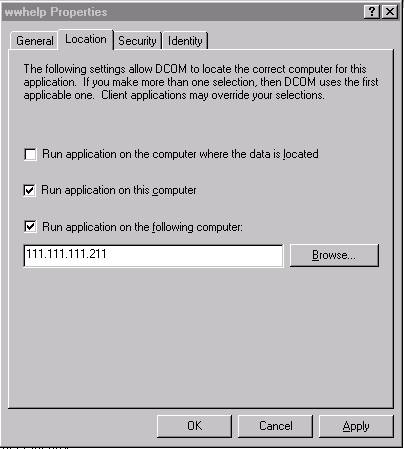
Notice that I’m using an IP address for the machine’s name. This means by the way that you can run DCOM over the Internet although it’s rather slow for making the connection to the server. Once connected performance can be Ok.
The
ability to instantiate objects over the network opens up the issue of security. As
demonstrated above, if access was open there’d be a huge hole in security as anybody
could start up VisualFoxPro.Application on my Web site and start using oVFP.DOCMD(“ERASE
*.*“) to wipe out my System directory.
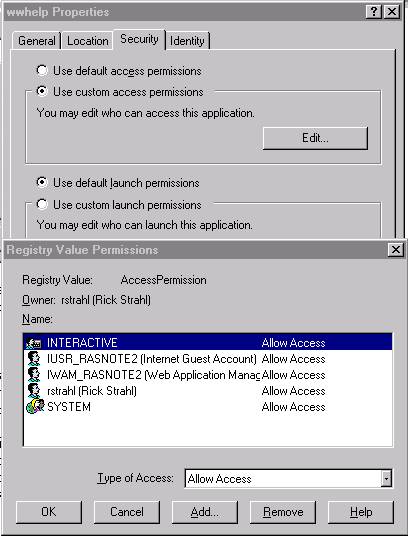
Security
is a thorny issue for DCOM. It’s difficult to configure as there are multiple levels
of security involved both at the system level and at the component level. The key for
running DCOM servers successfully starts with setting access rights for servers. You can
do this generically for all objects or for specific servers. I prefer the latter as it
gives you more control.
Finally,
you can control under which user context the server runs. Impersonation changes the user
context while the component is running then reverts back to the original setting. This is
crucial to allow components to temporarily achieve rights that the client of the component
would not otherwise have. For example, an ASP page user runs under the IUSR_ account and
hits your site. Now in order to access data in your data directory, IUSR_ must impersonate
a user account that can actually access files in your data directory.
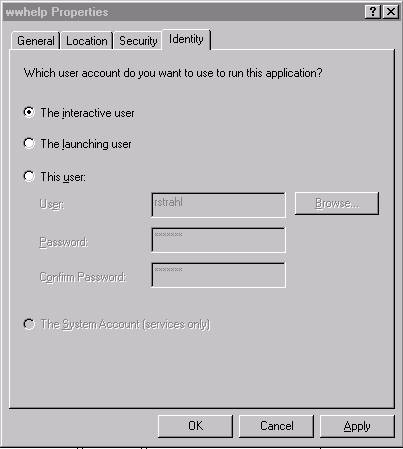
Usually
you’ll want to set this user to the Interactive User. This means whoever is currently
logged on to the system or the SYSTEM account if not logged on. This works well for
FoxISAPI, for example, and allows access to the desktop so if your server has a user
interface it can be visible.
For
remote operation it’s best to use an admin user account that exists on both the
client machine and the server. The server needs to have the client account installed as a
local account unless the client is connecting over local network that’s can validate
a domain name from both ends of the connection.
(for a
thorough discussion of DCOM security see the Visual
Basic Programmer’s Journal 1998 NT Enterprise Development issue).
DCOM works over the network and with slow connections come performance concerns. As I said earlier, a local type library is used to minimize round trips to the server to retrieve type, method and classID information. But all other access to the server requires that potentially large amounts of data are passed back and forth.
Keep in mind that DCOM over a network must send all data between client and server. Compare this to local objects that simply access local memory. For example, if you use ADO to create a recordset and you pass the reference to a DCOM object the entire recordset contents will copy down where on the local machine it’d simply reference the existing ADO object. Objects require that the entire memory footprint travels over the wire so that the stub on the server can recreate the full environment that the proxy sees on the client. It’s a beauty how this complex system functionality works, but expect it to be slow if you have complex or data intensive objects.
Take care to avoid passing complex objects and try to pass as much information as possible in single method call rather than repeatedly calling methods or properties. Each method call and property access requires a network round trip, so having one method that passes 10 parameters will be much more efficient than making 9 property assignments and one method call.
Also, keep in mind that net connections can be very slow, especially if you’re using the Internet. In addition to network latency there are issues with disconnects that cause your object to fail in the middle of a method call and, worse, lose its connection to the server so that the object is no longer valid. Trapping for these errors can be done by capturing COM exceptions which are generated by the local proxy. However, knowing what went wrong on the server, or where exactly the server failed, may not be possible when the connection is dropped. So you should make sure that object methods are granular enough to be easily undone on failures. As you can see there are some complex tradeoffs to be made between performance and reliability.
It seems a logical step to take advantage of the Internet in more ways than as a passive client using a Web browser. Distributed applications can provide a whole new set of features for your standalone applications:
¨
Server provides data to the client
A logical step for applications would be to take advantage of HTTP to access data over
the Web. HTTP has distinct advantages over plain TCP/IP access – it tends to be much
better at connecting to the server rapidly and is tuned better for operation of the
Internet's high latency connections.
I'll discuss Microsoft RDS as well as using wwIPStuff's HTTP features to use pure Fox code
to access data over HTTP.
¨
RDS - Remote version of ADO
RDS is billed as a remoteable version of ADO. This means RDS allows recordsets to be
downloaded over the Intnernet and to be taken offline. The data can be manipulated in
offline mode and then be marshalled back up to the server with only the relative updated
data to be reintegrated into the original data source.
RDS is exciting and very promising, but unfortunately the technology is very buggy
– still I'll discuss how it works here.
¨
Visual FoxPro access
Using the wwIPStuff HTTP interface it's possible to easily move data between client
and server by wrapping the data up on both ends of the connection and shipping it over
HTTP. The concept is very similar to the way RDS works, but unlike RDS this solution uses
open and customizable VFP code on both ends of the connection.
¨
Using XML to pass data
In many situations you can also use XML to pass data between client and server. IE 5
supports binding directly to XML data sets and it's possible to use VFP to serve up the
source data for IE to display from a VFP backend.
¨
Browser access and support
IE 5 supports extensive access to data via RDS and XML. That data can be easily bound
to DHTML form and display elements.
RDS is
the 'official' Microsoft system technology for remote data access concepts, legitimizing
the concept of data access across the Internet through integrating it as part of the
Microsoft Data Access Components and more precisely as an extension of ADO.
I have
to warn you, though—I've used this technology only in testing. I rarely write about
topics that I haven't used for real applications, but I think it's worthwhile to make an
exception here. The reason that I haven't used it yet is a simple one: I don't believe
these tools are ready for production work. But I think it will be a significant part of
Microsoft's future database access strategy and that it's worthwhile to take the time to
explore it now, to understand the current problems and to bug Microsoft to fix them. RDS
is very exciting for bringing easier data access over the Internet down to your FoxPro and
Internet Explorer client applications.
RDS
accomplishes a very important feat: It gives the client application the impression that
you are directly accessing a database on the server over the Internet. Think of it as a
stripped-down, remote version of ADO that works with disconnected recordset objects that
can be reconnected to their original data source after updating them locally.
RDS is
implemented as an ActiveX control, which is used on the client side. The ActiveX control
serves several purposes:
·
Handles the communication with a Web
server to marshal data from client to server.
·
Exposes the result data via ADO to the
client.
·
Allows updating the original data from
changes made on the client.

This
figure describes the flow of data over an RDS connection. The client code essentially
establishes a connection with a data source on the server, which must be a running
Internet Information Server. To use the ActiveX control, you set a handful of properties
that determine the server to which the query will be sent and the SQL statement to run on
the server. The ActiveX control forwards these property settings to the specified Web
server. An ISAPI extension on the server picks out the query properties and fires up a
data-processing COM object (Advanced.DataFactory by default) to process the command. The
client can override this COM object from the client side and point at a custom component
that implements the specific data-handling interface required (very similar to an ADO
DataProvider). The COM object performs the requested query and creates an ADO recordset.
The recordset is sent back as a return value from the COM method call. The ISAPI extension
then regains control and packages the recordset into a format suitable to be sent over
HTTP back to the client. The ActiveX control on the client retrieves this packaged ADO
recordset, reassembles it on the other end, and makes it available to the client
application through its recordset property. Note that the data must first be downloaded
and, depending on the flags set on the control, the request might have to wait for the
data to complete downloading.
Once on
the client, the recordset object can be used to access and update the data. While using
the recordset, the data is offline, meaning any changes made are not immediately updated
on the server. You can change, delete and add data in offline mode. A special method
called SubmitChanges() allows the client recordset to update the original data set on the
server. RDS marshals the data back up to the server and tries to update the data. If there
are update-contention issues, RDS will throw an exception that you can respond
to—it's supposed to be an all-or-nothing process, although the current functionality
causes incomplete updates to happen even on the row level. (I'll talk more about these
problems toward the end of this chapter.)
All this
requires the data to travel back and forth across the wire. The server fetches data as
needed with the Refresh() method and then sends it back with SubmitChanges(), causing a
fair amount of network traffic. You'll want to be very selective (pun intended) to pull
only the data you really need on the client side.
RDS is implemented as an ActiveX control so you can also use it inside VFP. However, the ActiveX control is a lightweight, IE-style control, which can't be hosted as a control inside a Visual FoxPro form. The RDS.DataControl can only be instantiated via code. The code to run a query over the Internet with RDS looks something like this, using the same guest book example data from before:
lcConnStr = "dsn=VFPGuest"
lcSQL = "select name,company,Message from guest"
oRDS = CREATEOBJECT("RDS.DataControl")
oRDS.SERVER = "http://Localhost/"
oRDS.CONNECT = lcConnStr
oRDS.FetchOptions = 1 && adcFetchUpFront
oRDS.ExecuteOptions = 1 && adcExecSync
oRDS.SQL = lcSQL
*** Wrap Execute command into 'safe exec' object
*** so we can trap any errors
oEval = CREATEOBJECT ("wwEval")
lnResult = oEval.Evaluate( "oRDS.Refresh()")
IF oEval.lError
? oEval.cErrorMessage
RETURN .NULL.
ENDIF
*** Convert the RecordSet into a DBF file
rs2DBF(oRDS.recordset,"TQuery")
BROWSE
RETURN oRDS
A couple of things are done a little differently here than in the Internet Explorer code. Because we're running inside VFP it makes sense to run our query synchronously by waiting for completion of the query. To do so, set the following two settings:
oRDS.FetchOptions = 1 && adcFetchUpFront
oRDS.ExecuteOptions = 1 && adcExecSync
The default is 2 and 2, which runs asynchronously and fires events instead. Handling these events is a bit tricky so you'll usually want to use synchronous operation.
The other issue is error handling. If you're running in synchronous mode, error handling works like any other COM object in VFP—it throws exceptions. The most common problem occurs when you call the oRDS.Refresh() method, which runs the query. Refresh() sends the query to the server and lets the server execute it. The server will return error information to the ActiveX control, which in turn throws a regular COM exception if an error occurred. The error information is returned as an ODBC or OLE DB-type error (similar to errors coming from SQLEXECUTE) For an invalid field in the SQL query, an error message would look something like this:
OLE
IDispatch exception code 0 from Microsoft OLE DB Provider for ODBC Drivers:
[Microsoft][ODBC Visual FoxPro Driver]SQL: Column 'ZIPCODE' is not found...
You can capture errors like this easily enough with global error handlers, but with online applications there are a lot of things that aren't easily handled by generic handlers, so I prefer capturing the error at the source. To do so I use a safe execution class called wwEval (a full version is included in this chapter's code and discussed in Chapter 5, FoxISAPI). Its purpose is to wrap an EVALUATE() or macro command into a class so that the class's error handler can capture any errors that occur and pass it forward without causing an error in the calling function or method. When the call returns, the lError property can be checked and the cErrorMsg property can be retrieved to decide what to do about the error (exit, in this case).
*** Wrap Execute command into 'safe exec' object
*** so we can trap any errors
oEval=create("wwEval")
lnResult = oEval.Evaluate( "oRDS.Refresh()")
IF oEval.lError
? oEval.cErrorMessage
RETURN .NULL.
ENDIF
The core of wwEval looks like this:
DEFINE CLASS wwEval as CUSTOM
lError = .F.
nError = 0
cErrorMessage = ""
vErrorResult = ""
FUNCTION Evaluate
LPARAMETERS lcEvalString
THIS.lError=.F.
THIS.Result = EVALUATE(lcEvalString)
IF THIS.lError
THIS.lError = .T.
THIS.cErrorMessage=Message()+ " - " + Message(1)
RETURN THIS.vErrorResult
ENDIF
RETURN THIS.Result
ENDFUNC
FUNCTION ExecuteCommand
LPARAMETERS lcEvalString
THIS.lError = .F.
&lcEvalString
IF THIS.lError
THIS.lError = .T.
THIS.cErrorMessage = Message()+ CR + "Code: " + lcEvalString
RETURN THIS.vErrorResult
ENDIF
ENDFUNC
FUNCTION ERROR
LPARAMETER nError, cMethod, nLine
THIS.lError = .T.
THIS.nError = nError
THIS.nErrorLine = nLine
THIS.cErrorMessage = MESSAGE()
ENDFUNC
ENDDEFINE
When using the Evaluate() or ExecuteCommand() methods, any variable references that you use must be in scope inside the class. In the above example, oRDS must be a PRIVATE variable—if it were LOCAL, oRDS wouldn't be in scope in the Evaluate() or Execute() methods because LOCAL is in scope only on the current call stack level. If used in classes, THIS from the calling method won't be in scope so you have to assign it to a PRIVATE variable and then use it instead of THIS.
This class comes in very handy when dealing with situations where you know errors might occur frequently and need to be handled immediately. The wwEval class is on your CD and provides a number of other features, including the ability to evaluate Active Server script syntax with VFP code from strings.
Once Refresh() has returned successfully, you have a recordset object to work with. You have a couple of choices about how to access and manipulate the data that came down from the server. You can use the RDS data directly or you can convert it to DBF format and use VFP's data engine to work with it. The approach depends on whether or not you plan to update the data.
The first and most logical approach is to simply use the ADO recordset directly in your FoxPro application. You can manipulate the recordset as an object and even bind it to data controls by using the object as the data source. The figure below shows the guest application running as a VFP form talking to the Web server using the RDS.DataControl object.

The form uses nearly the same approach that was used in the Internet Explorer example: it downloads the entire data set and then allows the set to be browsed locally. Any updates made to the data are sent back to the server. The input fields on the form are bound to the recordset's fields by setting the data source to THISFORM.oRDS.Recordset.Fields("Name").value. This allows the value to be read by the control as well as updates the data in the disconnected ADO recordset. Any changes made can then be updated with a simple call to SubmitChanges(). Here's a closer look at some of the key features. In the Init() event of the form, the following code establishes the recordset:
SET PROCEDURE TO wwEval ADDITIVE
THISFORM.oRDS = CREATE("RDS.DataControl")
oRDS = THISFORM.oRDS
oRDS.InternetTimeout = 5000
oRDS.Server = "http://localhost/"
oRDS.Connect = "dsn=VFPGuest"
oRDS.FetchOptions = 1 && adcFetchUpFront
oRDS.ExecuteOptions = 1 && adcExecSync
oRDS.SQL = "SELECT * FROM Guest ORDER BY Entered DESC"
WAIT WINDOW NOWAIT "Hang on - loading entries from the server..."
*** Wrap Execute command into 'safe exec' object
*** so we can trap any errors
oEval = CREATEOBJECT("wwEval")
lnResult = oEval.Evaluate( "oRDS.Refresh()")
IF oEval.lError = .T.
MESSAGEBOX (oEval.cErrorMessage)
RETURN
ENDIF
WAIT CLEAR
WITH THISFORM
.FillListBox()
.oRds.Recordset.MoveFirst
.txtName.ControlSource = "THISFORM.oRDS.RecordSet.Fields('Name').value"
.txtCompany.ControlSource = "THISFORM.oRDS.RecordSet.Fields('Company').value"
.txtEmail.ControlSource = "THISFORM.oRDS.RecordSet.Fields('Email').value"
.txtLocation.ControlSource = "THISFORM.oRDS.RecordSet.Fields('Location').value"
.edtMessage.ControlSource = "THISFORM.oRDS.RecordSet.Fields('Message').value"
.txtPassword.ControlSource = "THISFORM.oRDS.RecordSet.Fields('Password').value"
.txtEntered.ControlSource = "THISFORM.oRDS.RecordSet.Fields('Entered').value"
.txtCustId.ControlSource = "THISFORM.oRDS.RecordSet.Fields('CustId').value"
ENDWITH
Most of this code should look familiar from the IE example of loading the actual data from the server. If, for whatever reason, the recordset can't be loaded, the form will not load; instead it will abort with an error message. Again, note the use of the safe evaluation code to allow checking for this problem right away.
Notice that all the ControlSource values for the input fields must be assigned manually. Because the RDS control can't be dropped onto the form natively and must be created in code, the data binding doesn't work until the RDS object is initialized and has data in it. Because the form fields initialize before the form Init, this doesn't work. If you want to use data binding directly, you can use the form's Load event, but then there's no clear way to abort if the recordset doesn't load. The code above works well, but is decidedly non-visual requiring binding to be handled in code.
To fill the listbox on the form, you have to manually add items to the list because you can't bind the list directly to the recordset:
* FillListBox
rs = THISFORM.oRDS.RecordSet
oList = THISFORM.lstGuests
oList.Clear()
rs.MoveFirst()
DO WHILE NOT rs.EOF
oList.addItem(rs.Fields("Name").value)
rs.MoveNext()
ENDDO
Because the listbox isn't data-bound and the recordset doesn't support searching, responding to a click uses some really old-fashioned code. The following code looks for an entry by comparing the recordset name to the actual display value:
* Listbox :: When
rs = THISFORM.oRDS.Recordset
rs.MoveFirst()
DO WHILE !rs.EOF
IF TRIM(rs.fields("NAME").value) == TRIM(THIS.DisplayValue)
THISFORM.Refresh()
RETURN
ENDIF
rs.MoveNext()
ENDDO
Fortunately, this code is much faster in VFP than it is with VBScript running inside the browser. You'll still see hesitation on some of the last records, but it's nothing like the VBScript code. The rest of the form code deals with basic manipulation of the recordset through methods of the form. When data is updated it's sent back up to the server with the following code:
* Form :: Save
oRDS = THISFORM.oRDS
oEval = CREATE("wwEval")
oEval.Evaluate("oRDS.SubmitChanges()")
IF oEval.lError
MESSAGEBOX("Server Update Failed" + CHR(13) + oEval.cErrorMessage, 48,"RDS Sample")
RETURN
ENDIF
loButton = THISFORM.btnEdit
*** Do nothing. In HTML we have to show the form
*** located on the appropriate record, then wwForm::SetValues
loButton.Caption = "\<Edit"
*** Show Form in View Mode
THISFORM.ShowForm(1)
Notice again the use of the oEval object for SubmitChanges(). SubmitChanges() will report any errors that occur during the update process, including any update conflicts. You can capture the errors here and decide how to proceed. As you might expect, dealing with concurrency can be a very thorny issue because you have very little control over checking what was updated and when with RDS. There's no equivalent to CURVAL() and OLDVAL() as you have in VFP. Figuring out where the conflict occurred means parsing the error message. Hence it's a good idea to make any updates as atomic as possible—use row-level updates rather than table-level updates.
The remainder of the code in the form is fairly straightforward in its manipulation of the recordset object. Check out the code in the Guest.scx file for more detail.
Keep in mind that the preceding examples are very simple, yet even on those I ran into a multitude of problems that required workarounds. Some issues I couldn't resolve. Some of these are RDS limitations; others are bugs in the VFP ODBC driver. Yet others are problems with the IE scripting engine. All of these add up so that developing stable RDS applications involves a lot of trial and error, a lot of workarounds and sometimes insurmountable problems that might even cause you to scrap this approach.
ODBC problems with Visual FoxPro
The first problems you're likely to run into with RDS data access have to do with the Visual FoxPro ODBC driver. In particular, empty values—and what RDS thinks are null values—cause an RDS download to fail. For example, I originally tried my samples against a small test file. I then decided to test the same code on my Web server against real data that users had entered. Guess what, it didn't work! After some lengthy investigation, it turned out that RDS couldn't handle empty memo fields. This might be fixed by the time you read this, but it took me hours to figure out what was causing the error.
Along the same lines, updating data that has empty values causes ODBC to assume NULL rather than VFP-type empty values. If your table doesn't support NULL values, any updates will fail when you call SubmitChanges().
Speaking of SubmitChanges(), there's an extremely serious bug: If you update data and the update fails for whatever reason, partial data gets written. For example, if you append a new record and you leave a field blank, you'll get a null-related error. However, if you check the updated VFP table you'll see that a new record was added anyway, with only partial data filled in. This might also be fixed by the time you read this.
While testing I ran into other weird problems. For example, I had some problems with one of my SQL commands that caused Refresh() to fail. After it failed a few times legitimately, I reset the SQL statement to a valid one (SELECT * FROM GUEST) and that didn't work, either. I tried changing the data source. It still failed. I tried another page using a totally different database running on SQL Server and that failed, too. In essence, RDS became corrupted to the point that nothing worked. But I didn't realize that right away, of course, which caused me to change all sorts of code before discovering that RDS was bonked. Finally, I had to restart the Web server to get things to work again.
Wait, we're not done yet. Internet Explorer also has problems with data binding and data input. In the guest book examples, fields are bound directly to data, so making a change to the field automatically sends the data back to the underlying recordset. But there are issues in how IE deals with field input. The most annoying bug can be reproduced by going to any input field, typing a space, and then tabbing off. It doesn't matter whether or not other data follows the space—you'll get an Invalid Type error. IE also can't display NULL values, so if your tables contain NULLs or if ODBC/OLE DB translates empty values to NULLs you can have problems with the display in IE.
These problems make it unacceptable to bind data directly to input fields. The
workaround is to manually update and collect field values and forego the data binding on
input fields. It's much like the SCATTER/GATHER approach used by many developers in the
Fox 2.x days to "bind" data to fields and allow updating. This approach has the
additional advantage that you have a chance to prevalidate the data before it goes back
into the recordset. Data binding is a direct field-to-recordset binding mechanism, so
there are no formatting checks or error events that fire at the time of update. You have
to wait until you submit the changes so that any possible database rules fire or an
invalid input type is captured.
Object access across RDS provides a more interesting and possibly more usable approach today. With the RDS.Dataspace object you can instantiate a COM object on the Web server and call methods on it. The COM object runs on the server, and you can return either a simple type return value (no objects—only IDispatch/Variant compatible types) or an ADO recordset. If you return an ADO recordset from the server, the Recordset property of the RDS control is set in much the same way as with the RDS.DataControl. This is very powerful, because rather than simply pulling data down, you can cause Visual FoxPro code to run on the server and then optionally send data down to display, using the same RDS code that you used when accessing the data via the DataControl.
The DataSpace control works in a similar fashion to the RDS control. Think of the RDS control as a generic DataSpace object that allows direct access to data. The DataSpace control captures calls to its internal CreateObject() method and passes that object-creation request to the Web server over HTTP. The server component creates an instance of the object and creates a handle that identifies it.
Every time a method call is made, the object is created and the method is called. The return value is captured and the object on the server is immediately unloaded. The return value is then sent back to the client over HTTP. The return value can be only a simple type or an ADO recordset.
It should be obvious from this description
that your object must be stateless in order to work with RDS; you shouldn't keep any
information in properties except what's required for a particular method call. In fact,
remote RDS objects do not support property access over the HTTP connection at all, which
makes sense because the object is stateless. Because the object is loaded and unloaded
between each method call, you'll also want to minimize the amount of method calls that you
make on the object, preferably passing in many parameters at once to avoid server round
trips. The figure below shows how object access over HTTP works.

Let's look at an example by creating a COM object to call over the HTTP connection. You can find the code for these examples in RDSServer.prg for the server code and RDSObject.prg for the client. The goal for the server object is to build a few generic methods that'll allow running remote FoxPro queries and commands on the server to essentially plug VFP logic into a client over the Web. The base object with a simple test method looks like this:
*************************************************************
DEFINE CLASS rdsServer as Custom OLEPUBLIC
*************************************************************
*** Function: Demonstrates RDS Dataspace functionality
*** Access over HTTP
*************************************************************
cAppBasePath = ""
lError = .f.
cErrorMsg = ""
************************************************************************
* rdsServer :: Init
*********************************
FUNCTION Init
SYS(2335 ,0) && Turn off all UI ops
SET EXCLUSIVE OFF
SET DELETED ON
SET EXACT OFF
_VFP.Autoyield = .F.
*** Add start path to the path
THIS.cAppBasePath = GetAppStartpath()
DO PATH WITH THIS.cAppBasePath
RETURN
************************************************************************
* rdsServer :: HelloWorld
*********************************
FUNCTION HelloWorld
RETURN "Hello World from Server " + SYS(0)
************************************************************************
* rdsServer :: Error
*********************************
*** Function: Error Method. Capture errors here in a string that
*** you can read from the ASP page to check for errors.
************************************************************************
FUNCTION ERROR
LPARAMETER nError, cMethod, nLine
THIS.cErrorMsg = THIS.cErrorMsg + "<BR>Error No: " + STR(nError) + ;
"<BR> Method: " + cMethod + "<BR> LineNo: " +STR(nLine) + ;
"<BR> Message: "+ message() + Message(1) + "<HR>"
ENDDEFINE
This should look familiar by now from the ASP and FoxISAPI chapters—the base object functionality includes an error handler that lets you avoid hanging the server. Note that you'll never be able to read the cErrorMsg parameter when running over HTTP. Because the object is stateless, the error clears on every access of the server but nothing is stopping you from checking the error in your method code and handle it accordingly
To call the simple HelloWorld() method from the client over the Web, do the following:
CLEAR
lcHost = "http://localhost/"
oRDSDataSpace = CREATEOBJECT("RDS.DataSpace")
oServer = oRDSDataSpace.CreateObject("rdsServer.rdsServer", lcHost)
? oServer.HelloWorld()
RETURN
As you can see, the entire process isn't much more complicated than using CreateObject () */// OK to exchange "a" for "using"? Should CREATEOBJECT() be in upper and lowercase? \\\ with native VFP code. To return a recordset from the server, add the following method to the server:
************************************************************************
* rdsServer :: ReturnGuestRs
*********************************
*** Function: Runs a SQL query and returns a result recordset
************************************************************************
FUNCTION ReturnGuestRs
LPARAMETER lcWhere
lcWhere = IIF(EMPTY(lcWhere), "", lcWhere)
SELECT * FROM "Guest" ;
&lcWhere ;
INTO Cursor TQuery
rs = DBF2Rs()
USE IN Tquery
RETURN rs
Then try the following:
rs = ReturnGuestRs("WHERE UPPER(Name)=
'B'")
? rs.Fields("Name").Value
The recordset is marshaled from your custom query and can be used on the client side.
The DBF2RS utility (courtesy of Ken Levy), which is included on the CD, takes a VFP cursor and converts it to an ADO recordset (RS2DBF is also provided). The recordset can then be returned from the method call and accessed on the client side.
Because you can call a server object, it becomes fairly easy to tie in Visual FoxPro code to your server. Even better is the fact that you can create a few generic methods that allow you to run VFP code on the server without having to recompile. The following methods should give you some ideas. Most of the features were discussed in the FoxISAPI chapter, including ShowCursor() and the ability of wwEval to execute full code blocks of Visual FoxPro code at runtime.
************************************************************************
* rdsServer :: ReturnSQL
*********************************
*** Function: Generic routine that returns the result from a
*** SQL command as a recordset to the client
************************************************************************
FUNCTION ReturnSQL
LPARAMETER lcSQL
&lcSQL ;
INTO CURSOR TQuery
rs = DBF2Rs()
USE IN Tquery
RETURN rs
************************************************************************
* rdsServer :: ReturnSqlTable
*********************************
*** Function: Function runs a SQL query then returns the
*** result as an HTML string
************************************************************************
FUNCTION ReturnSQLTable
LPARAMETER lcSQL
&lcSQL ;
INTO CURSOR TQuery
*** Create HTML table from data
lcHTML = THIS.ShowCursor()
USE IN Tquery
RETURN lcHTML
************************************************************************
* rdsServer :: Evaluate
*********************************
*** Function: Evaluates an expression, function or method call
*** Pass: lcCode - Expression to Eval
*** Return: Result from expression
************************************************************************
FUNCTION Evaluate
LPARAMETERS lcCode
loeval = CREATEOBJECT("wwEval")
RETURN loEval.Evaluate(lcCode)
ENDFUNC
* rdsServer :: Evaluate
************************************************************************
* rdsServer :: ExecuteCode
*********************************
*** Function: Generically executes some code on the server
*** Assume: Uses Randy Pearson's CodeBlock
*** Pass: lcCode - block of VFP code
*** Return: Result from Execution
************************************************************************
FUNCTION ExecuteCode
LPARAMETERS lcCode
lcCode = IIF(EMPTY(lcCode), "", lcCode)
set step on
loEval = CREATEOBJECT ("wwEval")
RETURN loEval.Execute(lcCode)
ENDFUNC
* rdsServer :: ExecuteCode
To use some of these functions, look at the following snippets of code:
lcHost = "http://localhost/"
oRDSDataSpace = CREATEOBJECT("RDS.DataSpace")
oServer = oRDSDataSpace.CreateObject("rdsServer.rdsServer", lcHost)
*** Return results from any query as an HTML table
SET PROCEDURE TO wwUtils ADDITIVE
ShowHTML( oServer.ReturnSQLTable("SELECT * FROM GUEST") )
*** Generically execute code and return a value
lcCode = ;
"Select company,name from guest into cursor TQuery" + CHR(13) + CHR(10) + ;
"rs = dbf2rs()"+ CHR(13) + CHR(10)+ ;
"RETURN rs"
rs = oServer.ExecuteCode(lcCode)
? rs.Fields("Name").value
You can
also return a recordset object and assign it to a DataControl object:
oRDS = CREATEOBJECT ("RDS.DataControl")
oRDSDataSpace("RDS.DataSpace")
oServer = oRDSDataSpace.CreateObject(…)
…
rs = oServer.ExecuteCode(lcCode)
*** Bind the returned recordset to the RDS Datacontrol
oRDS.SourceRecordSet = rs
*** Make a change to the data
rs.Fields("Name").value = "Ricky Strahl"
*** Marshal changes back to server
oRDS.SubmitChanges()
The RDS DataSpace object is very powerful, as you can see, but it's crucially important that you understand how the architecture works. In essence you're calling a remote object on the server, which functionally has the same implications as calling a FoxISAPI server or an ASP COM component—hang it and your app dies. But the idea of controlling the server directly from the client, rather than using the server to do all of the work, is very appealing. However, it also exposes some security holes I'll discuss in the next section.
You'll also run into the same scalability issues faced by pure server applications—your component might have huge numbers of simultaneously connected users. Because RDS loads and then unloads the object on each method call, there's a fair amount of overhead involved. If you're running the initial release of Visual FoxPro 6.0, you'll run into blocking issues because only a single method call on the server can execute at one time. A forthcoming Service Pack of Visual FoxPro 6.0 addresses this by allowing multiple instances of objects to process methods concurrently on multiple threads.
While I've been demonstrating these examples you might have noticed that the way RDS works can be a huge security problem. This is because the client can basically dictate how to access the data or object on the server. Because the client code can be created in any client application, like Visual FoxPro or Visual Basic or even Internet Explorer scripting code, anybody has access to your back-end data or RDS object.
As you might expect, this is a serious security issue. Look at what's possible with the RDS data control. Earlier I told you that you can connect to the server with:
oRDS.Connect = "driver=Microsoft Visual
FoxPro Driver;" & _
"Exclusive=No;SourceType=DBF;" & _
"SourceDB=d:\wwcode\wc2\wwdemo;uid=;pwd="
Well, nothing is stopping the crafty IE VBscript coder from accessing another directory. Even if you hide your SourceDB in a DSN, the client can possibly still guess directories on your server and access data directly. It requires some knowledge about what files are available, but if that knowledge is in place (perhaps an ex-employee?) all data is at risk to be retrieved and even manipulated without the client having rights on that server. That's right—it doesn't matter if client X doesn't have rights, because the data is accessed through the Web server and the impersonation account that RDS runs. The RDS server piece runs in an Admin or System account and has full rights on the server.
Even a secure data source like SQL Server can be compromised. If RDS is installed and you have a DSN to access your SQL server, RDS can be scripted from the client side. Somebody with inside information could gain access to a database and issue DELETE FROM <YourMostImportantTableHere> to wipe out all of your data!
Scary, ain't it? Once a user has figured out what data is available, he's free to issue a SQL command of DELETE FROM GUEST. Worse, if you're using Internet Explorer it's easy to figure out how data is accessed. Take a look at the Guest.asp example—the DSN is visible directly if you view the HTML source. You can gain better protection by using a fat client application, or wrapping the data access logic in an ActiveX control that handles the server connection without exposing any information about the data. Still, even with that approach you're open to somebody guessing where your data sits—it's unlikely, but definitely possible, especially for people inside the company.
To make things even worse, RDS is installed through the IIS 4.0 nstall program, which doesn't warn you about any security issues. If you choose to install Remote Data Service (which is the default!) during the IIS 4.0 installation process, you're opening up your system to this behavior, possibly without even knowing what the security issues are. To check this out, look in the IIS Admin console for the MSADC virtual directory. If it's there, RDS has been installed. There's no direct way to uninstall RDS, either—you have to make some changes in the server's registry (or you can remove the MSADC virtual directory). RDS determines what it has access to through the following registry key:
HKLM\SYSTEM\CurrentControlSet\Services\W3SVC\Parameters\ADCLaunch
Any of the servers listed here are those that can be invoked through the RDS.DataSpace's CreateObject() method. Here are the two default keys that RDS installs:
·
RDSServer.DataFactory
RDS uses this generic data service when you use the RDS.DataControl to access data on
the server. If you remove this key, direct RDS data access will no longer work. This is
probably the biggest security risk.
·
AdvancedDataFactory
This object is used to create new instances of objects on the server using
DataSpace.CreateObject(). Remove this key to disallow remote object instantiation.
·
Any object you install
Any objects you create to be called through DataSpace.CreateObject() must be
registered here by creating a key with the ProgId of the server.
Data access is the most vulnerable security issue because of the way that RDS allows the client side to directly access a remote data source via an ODBC/OLE DB connect string. Using Dataspace objects allows a little more security because you can essentially hide the database connection issues in code that runs on the server. But that still leaves your remote object open to access from the client. This, however, could be a little more difficult to hack because you need to know the interface to the object.
Again, the biggest issue is the fact that IE Scripting is wide open for anyone to examine. If you use a remote Dataspace object and it's scripted through IE, viewing the HTML source will expose the code required to hit the server. Any method calls made can be misused. Let's say you have a method called DeleteRec to delete the current order displayed. From this information it wouldn't be hard to figure out other order numbers and start deleting those as well.
RDS is inherently insecure, precisely because the client security is not checked. There are some ways around this, however:
·
Hiding code in ActiveX controls
The biggest problem is that using IE Scripting makes code visible on the client side.
You can work around this by putting your code into binary modules like ActiveX controls
(VB or VC++) instead of VBScript. That way the data access code is not visible to the
client.
·
Using authentication for object
access
This type of authentication would have to work through a Web server application that
can log users in. You can obviously limit access to the actual pages that contain the
scripted RDS code. You can use an authentication scheme to force users to log in first and
then use the authentication information in the Web page through ASP scripting (by using <%=
Request.ServerVariables("Remote_User") %> and embedding this into a
method call). Along the same lines, you could validate the user and then pass down a
unique cookie on each hit. The cookie can be retrieved on the client side and passed down
to the server on each method call. This would ensure that users go through the proper
paths to get to the desired page.
However, this approach will not guard against internal sabotage. People who have
legitimate access could still hack into the system by accessing the server directly and
guessing at functionality to which they might not have direct access (RDSDemo.RDSServer
for example).
·
Fat client
Fat client applications written in VFP, VB, and so on offer a lot more security
because the connect and access information is not visible to the actual user. This
provides protection from client eyes, but it doesn't protect you from somebody in the know
who's hacking in and making the same calls on the server.
Controlling security for applications that have client-side logic and server access services is always problematic because the nature of the beast requires the client to have generic access. With that flexibility comes the power both to build cool applications and to abuse security rights. I demonstrated similar issues with the WinInet data transfer code, but there, at least, you had control over the process so you could use your own authentication schemes and build them directly into the "protocol" level. No such luck with RDS because it's generically packaged by Microsoft.
If you want to use data or objects on the server that can be accessed by a wide Internet audience, you're opening up a security hole because anybody who knows how can get at the data logically. However, levels of security vary, and RDS is very bad at this because it doesn't offer any security options from the client side. Even if you want to build a tightly controlled Internet application that allows access only to certain users, user verification is difficult. You're still taking the risk of allowing access to anyone who has knowledge of the data or object interface. DCOM over HTTP
Another option for object access that's coming with NT 5 (Windows 2000) and COM+ is DCOM over HTTP. DCOM provides similar capabilities to the RDS DataSpace object, but with direct access to server objects. The advantage of DCOM is that security is configurable at the component level so you can lock out unauthorized users. For wide-audience applications, though, you'll run into the same issues as with RDS. DCOM's security model also requires clients to be configured to access a server over the network—something that RDS does not require. For wide-audience apps this would be a major problem, but one that could be addressed with an ActiveX wrapper module.
Regardless of the route you take, you should start thinking along the lines of building ActiveX controls for server-access code from browser-based or fat client applications. It's really the only safe way to deal with remote objects at this time.
This document contains very detailed descriptions on how to utilize the wwIPStuff HTTP features for accessing data and logic on the server. Discussions deal with how to control Web applications through a VFP front end, how to download and exchange data between VFP and a Web Server and examples are shown how to build a server side generic query engine that can run SQL statements over HTTP.
| C |
|