
 List Manager
 List Manager
This form provides access to editing several common lists used in the Web Store.
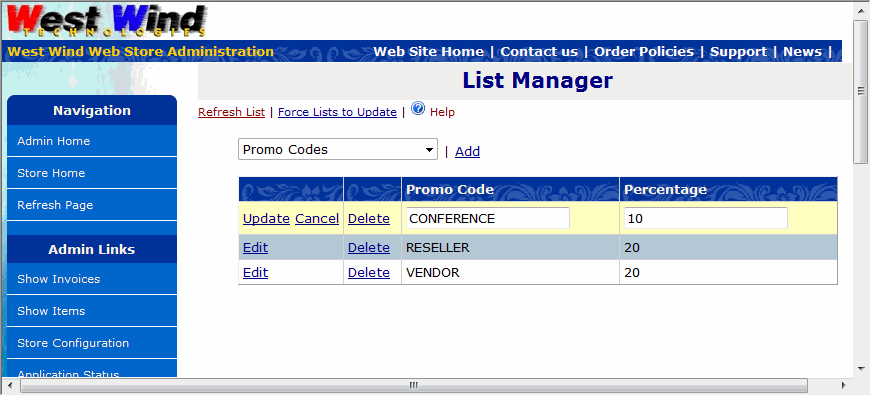
It provides the ability to add, edit and delete new items for:
- Promo Codes
This list allows you to specify custom Promo codes and discount percentages that apply to them when used with an order. By default if a discount group is assigned with a percentage that percentage is applied against all the order items. - Referal Listing
Referal listing is displayed on the Order Form page and asks 'Where did you hear about us' You can customize this list as needed and use it for whatever information you'd like to track. - Tool Used
Similar to the Referal list. This list by default asks which development tool is used. This list can really represent anything at all you want captured on the last page. - State Codes
The list of States that pop down in the State List for US and Canadian Provinces - Country Codes
A list of country names and country Ids used for the Country drop downs.

Comment or report problem with topic