
 Setting up the Offline Application
 Setting up the Offline Application
The offline Web Store application requires that you use a separate Web Store Database. There are two ways to set this up:
- Use the Web application's Create Database form to create a new database
This is the easiest way to accomplish this task. Since the Web application can create a database on a separate server/machine it should be easy to do this as long as the Web application has access to the SQL Server that you want to install the offline database on. - Create the database manually
You can also create the database manually by using Sql Server Enterprise Manager (or Db2KMgr) to create a new database. Once created you can execute the <installDir>\DataTemplates\WebStore_SqlServer.sql script. This creates all the tables and stored procedures necessary as well as the data for the lookup tables.
Once set up. you need to start the offline client application. You will get an error to the effect that the data could not be loaded. Click OK and let the application startup - you will find an empty form. Click on Configuration on the Toolbar and then provide a new connection string.
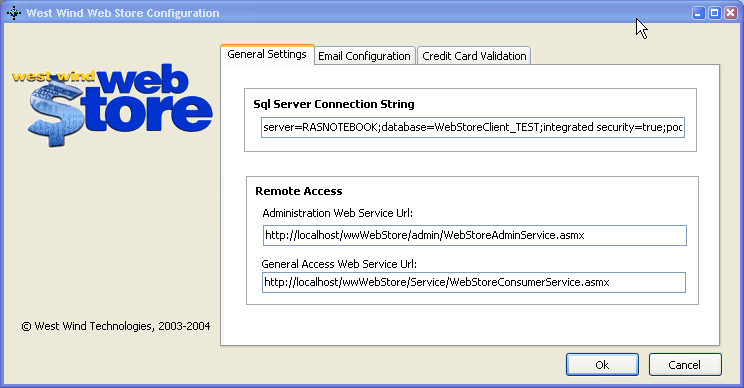
For a Windows Forms application it might make sense to Integrated Security for the application so a connection string might look like this:
server=SQLBOX;database=WebStoreClient;integrated security=true;enlist=false;
On the first page you should also hook up the URLS for the WebService so you can communicate with the server application to download orders and update inventory. If your application is running as:
Then the Web Service Urls would be as follows:
Admin Service:
http://localhost/webstore/admin/WebStoreAdminService.aspx
*-- this Url should be configured as an HTTPS:// url on a live site!
General Access Service:
http://localhost/webstore/service/WebStoreConsumerService.aspx
The rest of the configuration settings in this application work identically as to the Web version, so to find out how the various settings work please check the Web Store Configuration topic.
Note:
Like the Web application, the Web Store stores configuration settings in the app's configuration file WebStoreClient.Exe.Config.

Comment or report problem with topic