
 The Server Status Form
The server status form serves as the configuration console of the currently running server application. It shows the current settings for the server and allows you to modify them on the fly and save the values persistently.
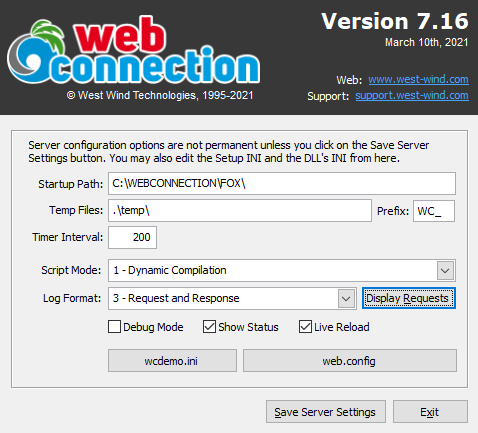
Server Configuration Settings
The fields on this form represent values that come from the goWcServer.oConfig object at runtime, or the <yourApp>.ini settings file at startup. Not all values from the underlying object are represented on this form - only the most important and commonly changed values are changeable on this form.
Here's what the various fields do:
Startup Path
The startup path shows the location that the server is currently running from. Use this as a reality check to make sure you are running out of the correct folder.
Temp Files, Timer Interval and File Template - File based operation only
The Temp File Path and File Template determine where Web Connection looks for the message files for incoming requests in File Mode.
The Temp Path is the location of the message files and the Prefix is the prefix used on these message files. The temp path is the important one and it should match the path that is set in the Web Connection Handler or Middleware configuration.
In Web Connection 6.x and later projects the default is .\temp which is the self-contained temp folder in project's deploy\temp location. We recommend you leave this path unchanged, but if you do change it, change it here and in your Web server configuration to match.
Temp Directory Permissions
Web Connection auto-configures the Temp folder when setting up a new project or running the project's server configuration script. But if you manually configure you Web server, make sure the Web Server Process or Identity has Read and Write permissions in this folder.
These settings map to:
wwServerConfig::cTempFilePathwwServer::cTemplatewwServer::nTimerInterval
Script Mode
The script mode determines how Web Connection interprets Script Pages. You can choose between:
1 - Dynamic Compilation
Checks whether the script file has changed compared to the compiled FXP file and if not, parses, compiles and runs the script on the fly. Subsequent hits checks for file changes, but if the script hasn't changed uses the existing file. Scripts are unloaded after execution to allow for this process to work without getting locked into memory. This process has some overhead, but performance for most scenarios is still excellent.2 - Preccompiled FXP Files Assumes that an FXP already exists on disk and can be executed. This mode is considerably faster as it doesn't have to check for file existance or do date checks on the file. While this is faster.
Scripts can be pre-compiled on the Web site on the Module Administration Page.
Maps to: wwServer::nScriptMode
Log Format
Determines how Web Connection logs requests in the wwWebRequestLog.dbf file. There are several different log formats:
- 0 - No Logging
- 1 - Minimal Request Logging
- 2 - Full Request Logging
- 3 - Full Request and Response Logging
You can use the Display Requests button to open the Request Log Viewer to examine recent requests processed as stored in the log.

For production it's highly recommended you turn logging off or use Minimal Request logging to avoid massive disk usage - log files get large quickly and can easily overrun FoxPro's 2gb size limit.
For development Full Request and Response logging is useful, as it allows you to look at incoming Request and outgoing Response data which is often very useful for debugging.
Log File Management
It's important to keep an eye on the Web Connection log file and make sure it doesn't get too big and approaches or exceeds the 2gb limit. Even minimal logging eats up a lot of data quickly. Either pack and reindex your log files regularily from the Web Module Admin page or have a system of backing up log files and then deleting them (Web Connection recreates them when not found).
Maps to: wwServer::nLogFormat
Debug Mode
Lets you change the server's debug status. In Debug Mode error handlers are disabled in Web Connection, so when an error occurs the code stops on the error. With DebugMode off, errors are routed into the built-in error handlers which result in error Web pages instead.
For development it's often useful to run with DebugMode=on to quickly fix problems at the source. However if you use LiveReload=On it maybe useful - even during development - to run with DebugMode=off.
Show Status
Determines whether requests are shown in the Status Form main window area. This is useful in development or when you are actively monitoring the server, but for production sites you'll want to turn this option off as it does add some overhead to each request.
Live Reload
This enables Live Reload for the Web Connection server, which automatically restarts the Web Connection server when you change a PRG or INI file. When used in combination with the Web Server Live Reload which also reloads the active Web Browser page, you can very quickly and interactively make changes to HTML and code logic and see the changes immediately reflected in the Web browser without having to manually reload pages.
Save Server Settings
The settings on this form are help in goWcServer.oConfig object which stores these settings on disk in <yourApp>.ini. The .ini file is not updated until you Save Server Settings.
The Configuration object contains many more properties than what you see on this form which are only the most common and important ones. To see the full property list look at <yourApp>.ini or the Configuration class in your main startup .prg file.
Note that when you save all settings are written including those that are not displayed which are always active and in memory while the server is running.
See also
Logging and The Request Log Viewer
Comment or report problem with topic