
 The Web Connection Visual Studio Add-in
The Web Connection Visual Studio Add-in provides a number of useful features that makes viewing Scripts and Templates and editing and previewing of Web Control Framework pages easier.
- View in Browser lets you preview Script and Template Pages
- View FoxPro Code either in VFP editor or an external editor (VS Code)
View In Browser
Visual Studio has a native feature for
Show FoxPro Code
When inside of a Web Connection script page you can right click and bring up the shortcut menu which includes a Show FoxPro Code option:
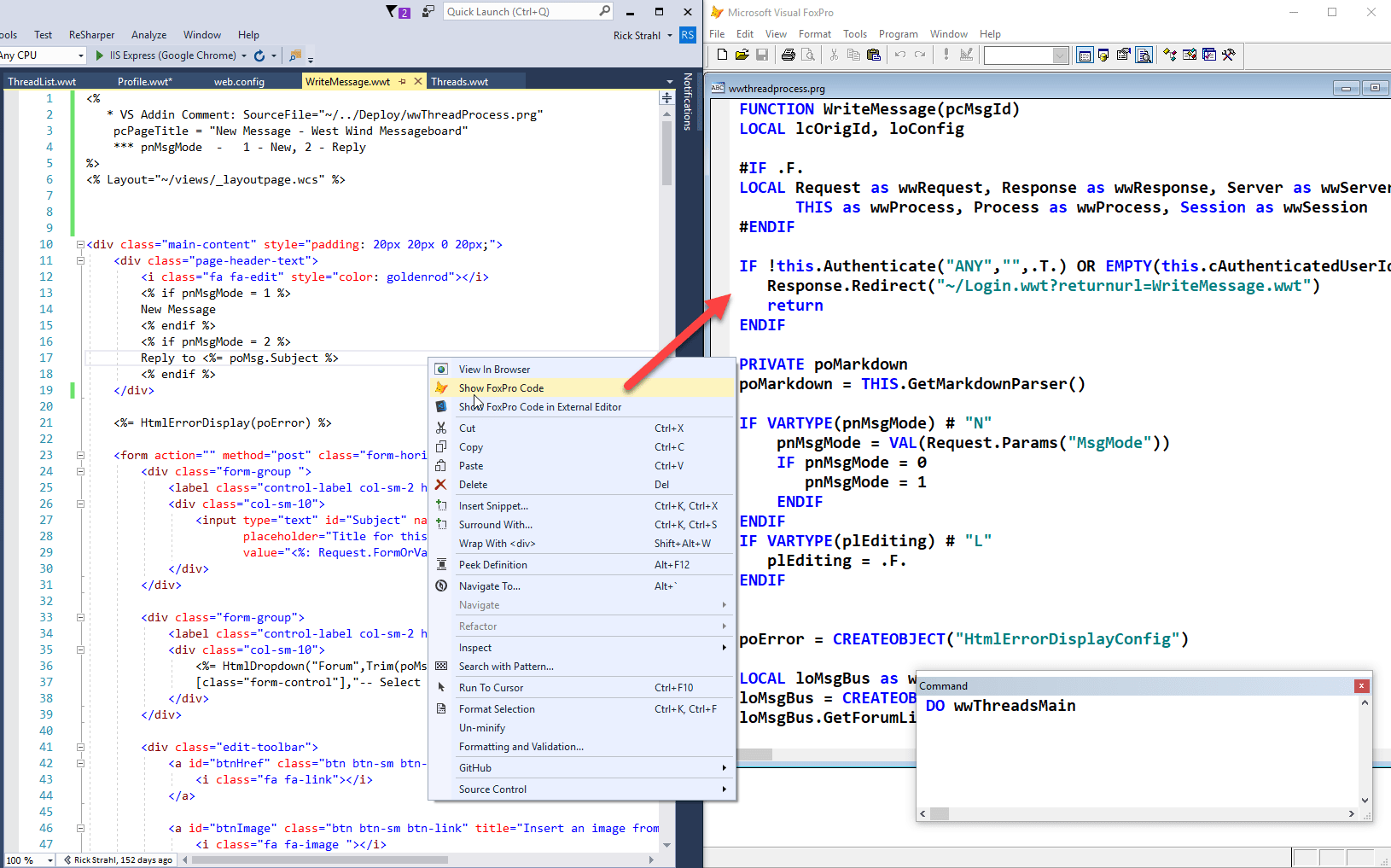
The option opens a new instance of Visual FoxPro and - if the page has a SourceFile assignment at the top - opens the appropriate file in the FoxPro editor.
<%
   * VS Addin Comment: SourceFile="~/../Deploy/wwThreadProcess.prg"
   ** other stuff can follow here
%>
Notice there's a second option
Scripts, Templates and HTML Pages
Supports View in Browser, since Visual Studio natively does not support unknown extension files to be previewed. This provides the same features as the Visual Studio feature, but it works with any file that contains HTML content including Web Connection scripts and templates. Also support Show FoxPro Code functionality if the document includes aSourceFile="<filename>"tag anywhere in the HTML document.Web Control Framework Pages
Supports jumping directly to FoxPro source code in the FoxPro IDE or a pre-configured exernal editor (recommend Sublime Text with Matt Slay's FoxPro extension). Also as above it supports View in Browser to preview We
Visual Studio Support
We highly recommend you use Visual Studio Community Edition as it's the latest, free version of Microsoft's Visual Studio development environment that supports add-ins. Community edition has the same feature set as Visual Studio Professional with the same feature set and it's free for all but larger Enterprise customers. Older 'free' versions of Visual Studio did not have Add-in support so we recommend this version or any full version of Visual Studio 2015 or later.
How to use the Add-in
The add-in installs as part of the Web Connection installation if Visual Studio is detected (or you can manually install - see below). Once installed the add-in is available on the Visual Studio shortcut Tools menu, or by right clicking in any HTML, Script, Template or Web Control Framework page.
For HTML, Scripts and Templates
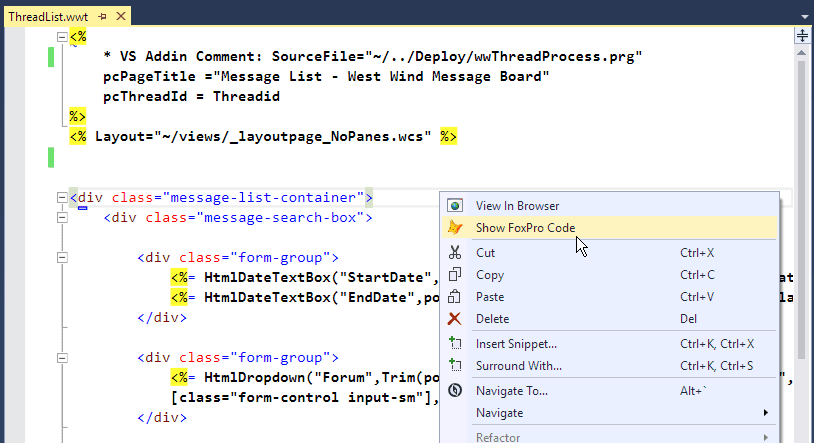
For Web Control Framework Pages

On the Main Menu Toolbar
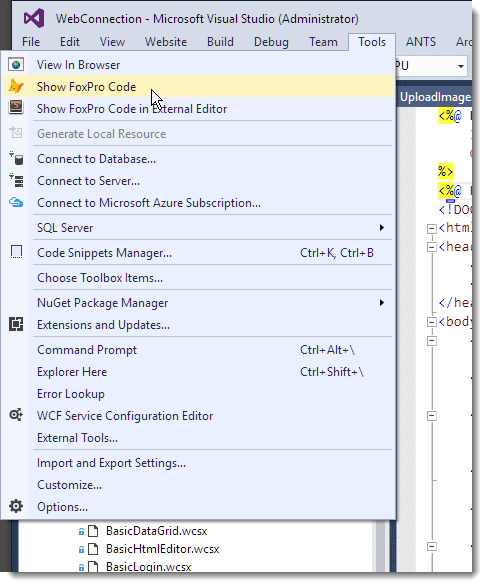
Script, Template and HTML File Features
For HTML and script pages, the add-in offers two features: View in Browser and Show FoxPro Code. The latter is only enabled if you add a special command to the HTML file.
View in Browser
This option lets you use the Visual Studio configured browser to navigate to the active Web Control Framework Page. The browser is shown on the Visual Studio toolbar and you can change the current browser via the dropdown as well as set the default browser.
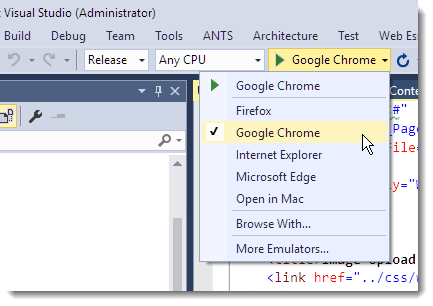
The Web Site navigated to uses the WebProjectVirtual key from the web.config file, or if possible the designated project Web site (which isn't always available to the Addin) in order to figure out the site in which to open the page in your browser.
Show FoxPro Code
This option is only enabled if the file contains SourceFile="<foxpro_code_file>" embedded in the document somewhere. This works with any kind of HTML file including Scripts and static HTML pages. To specify the file you can use a physical disk path or the virtual path character ~/ to indicate the project root path.
For typical scripts in a poject you can use something like this:
<%
   * VS Addin Comment: SourceFile="~/../Deploy/wwThreadsProcess.prg"
%>
Note that the * VS Addin Comment: is not required, but it creates a FoxPro comment in script code that identifies what's happening.
The Addin only requires SourceFile="<file>" in order to enable the Show FoxPro Code functionality - if the the a tag is not found in the document the option is not avaiable. It doesn't matter where or how the string is defined it just has to be present in the HTML document. For scripts comment is nice, because it doesn't add any overhead to any generated code.
You can also use it in HTML pages (like AJAX pages):
<!-- SourceFile="~/../Deploy/wwThreadsProcess.prg" -->
which works as well, but that does get sent to the client.
Web Control Framework Features
The add-in is available on any Web Connection Control markup pages (both in HTML markup or in the visual designer) and pops up via right click on the Context menu or on the Main Menu Tools pad.
The last two items on this context menu make up the add-in operation:
View in Browser
Same as described above.Show Web Connection Code
Shows the FoxPro Source code for the GeneratedSourceFile in the Visual FoxPro Editor. Brings up the VFP IDE and opens the editor. Note: Make sure you close the editor after you're done editing or the page will not run as VFP locks the PRG file while editing. This option relies on theFoxProjectBasePathkey in web.config to find the source file for editing when using a relative path (ie.SomePage_Page.prgorsubfolder\SomePage_Page.prg) or theWebProjectBasePathwhen finding virtual relative paths in the Web folder (ie.~\SomePage_Page.prgor~\subfolder\SomePage_Page.prg). The default editor can be configured using theFoxProEditorkey in web.config - by default this value is blank which uses the FoxPro IDE.Note if the source file does not exist yet because you haven't viewed the page yet (ie. it hasn't been generated yet), Web Connection prompts you if you want to create it. Although this works we recommend that you rather run the page to generate the page as it provides more thorough page generation.
Show Web Connection Code in External Editor
Same as above except that you can specify an external editor (FoxProEditorExternalin web.config) of your choice like Sublime Text, TextPad or other Notepad. External editors are more lightweight than Visual FoxPro and make it easier to edit code without shutting down the editor as external editors don't lock the source file as the FoxPro IDE does.
Add-in Installation
The Add-in is automatically installed when you install Web Connection. To update outside of Setup you can use the menu option on the WCSTART.PRG menu to run to install the add-in explicitly. Finally you can also install it directly by double clicking the VSIX file which lives in:
c:\wconnect\visualstudio\WebConnection-Addin.vsix
Note that if the plug-in is already installed this will fail.
Add-in Updates
If you update your version of Web Connection, Web Connection's setup uninstalls and re-installs the add-in to get it up to date. To update outside of setup you can run the WCSTART.PRG menu in FoxPro to explicitly reinstall the add-in, or you can manually do it:
- Go to Visual Studio's Tools | Extensions and Updates
- Find the Web Connection Add-in
- Click the Uninstall button
Then to re-install:
- Double click the VSIX in
c:\wconnect\visualstudio\WebConnection-addin.vsix
Add-in specific Web.Config Configuration Settings
The Add-in uses several configuration settings to configure its operation using the generic webConnectionVisualStudio section in web.config.
Most importantly the Add-in needs to know the location of your Web path (ie. your virtual path and your physical file path) to your markup pages as well as the base FoxPro path where source code files are stored. Most of the other keys are optional and are defaulted.
Here's what a configuration section looks like:
<configuration>
   <webConnectionVisualStudio>
    <add key="FoxProjectBasePath" value="c:\wwapps\wc3\" />
    <add key="WebProjectBasePath" value="c:\westwind\wconnect\" />
    <add key="WebProjectVirtual" value="http://rasnote/wconnect/" />
    <add key="IdeOnLoadPrg"  value="OnLoadIde.prg"/>
    <add key="FoxProEditor" value="" />
    <add key="FoxProEditorAlternate" value="C:\Programs\EditPadPro6\editpadpro.exe" />
  </webConnectionVisualStudio>
<configuration>
Here's what each of the keys mean:
FoxProjectBasePath
This is the FoxPro path to your Web Connection installation or your base path from which the application runs. This path is used by the Add-in as the base path to which the GeneratedSourceFile value is appended.WebProjectBasePath
The physical path to the base directory where the markup pages live. This is the physical path to the virtual directory where IIS (or whatever server) will serve files from. This path is used by Web Connection to locate files for parsing based on a project relative path that Visual Studio provides internally.WebProjectVirtual
This is the full virtual path that is used to access the base Web directory. This path should be a fully qualified base URL that ends in a slash. For example: http://localhost/TimeTrakker/. This path is used by the Add-in to preview pages in the browser.IdeOnLoadPrg
An optional relative path (to the FoxProjectBasePath) to a PRG file that is called when the Visual FoxPro IDE is launched from the Add-in. You can use this PRG to set your environment or execute any FoxPro code you require for your environment to be configured properly (ie. set paths, load classes etc.)FoxProEditor
The Editor used for editing FoxPro source files. By default this value is empty which uses the Visual FoxPro IDE for editing. You can optionally specify the path to an EXE that serves as the editor.FoxProEditorAlternate
An optional second alternate editor that if set is also shown on the menu. Specify the full path to the editor EXE. This option is useful to point at an editor that doesn't lock PRG files so you can make incremental edit changes.
Only the first three keys are required to be configured - all the remainders are optional. If you don't specify FoxProEditorAlternate the alternate menu options are not shown.

Comment or report problem with topic